D&D 5th Edition (2024) Ruleset User Guide
This article covers everything you need to know to get started using the D&D 5th Edition (2024) ruleset with Realm VTT.
Table of Contents
Introduction
The D&D 5th Edition (2024) ruleset for Realm VTT implements the updated 2024 rules for Dungeons & Dragons, including support for:
Full character creation wizard with multiple ability score generation methods
Automated dice rolling with modifiers
Spell management with slot tracking
Inventory system with weight calculations
NPC stat blocks with legendary actions, lair actions, and more
Weapon Masteries from the 2024 rules
Wild Shape and Polymorph support
And much more!
This guide will walk you through everything you need to know to use the ruleset effectively.
Getting Started
Accessing the Ruleset
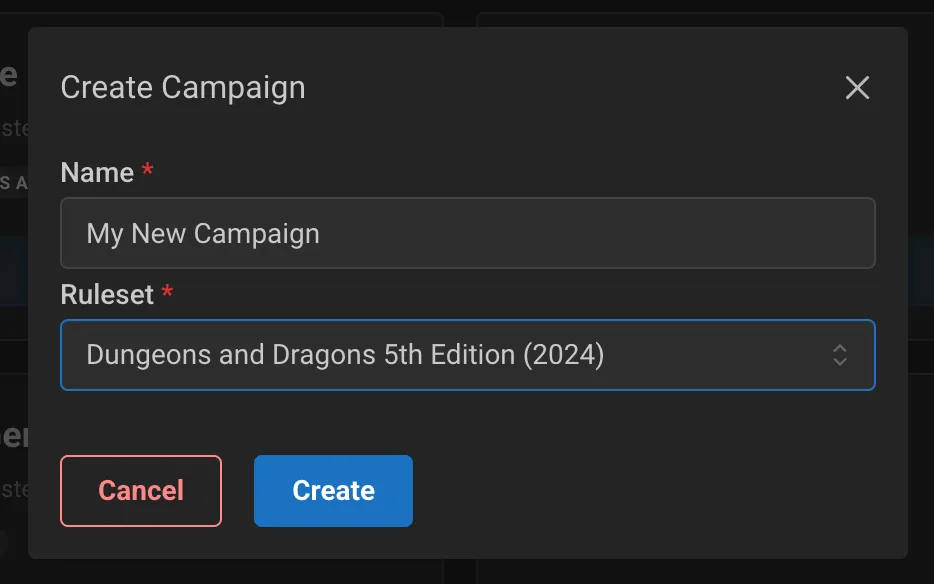
When you create or join a campaign using the D&D 5th Edition (2024) ruleset, all the character sheets, compendiums, and game mechanics are automatically available.
Key Concepts
Records: Everything in Realm VTT is a "record" - characters, NPCs, items, spells, feats, etc.
Compendiums: Collections of records that can be searched and dragged onto character sheets
Drag-and-Drop: Most content is added to characters by dragging from compendiums or other sources
Creating a Character
Using the Character Creation Wizard
When you create a new character, a 4-step wizard guides you through the process:
Step 1: Ability Scores
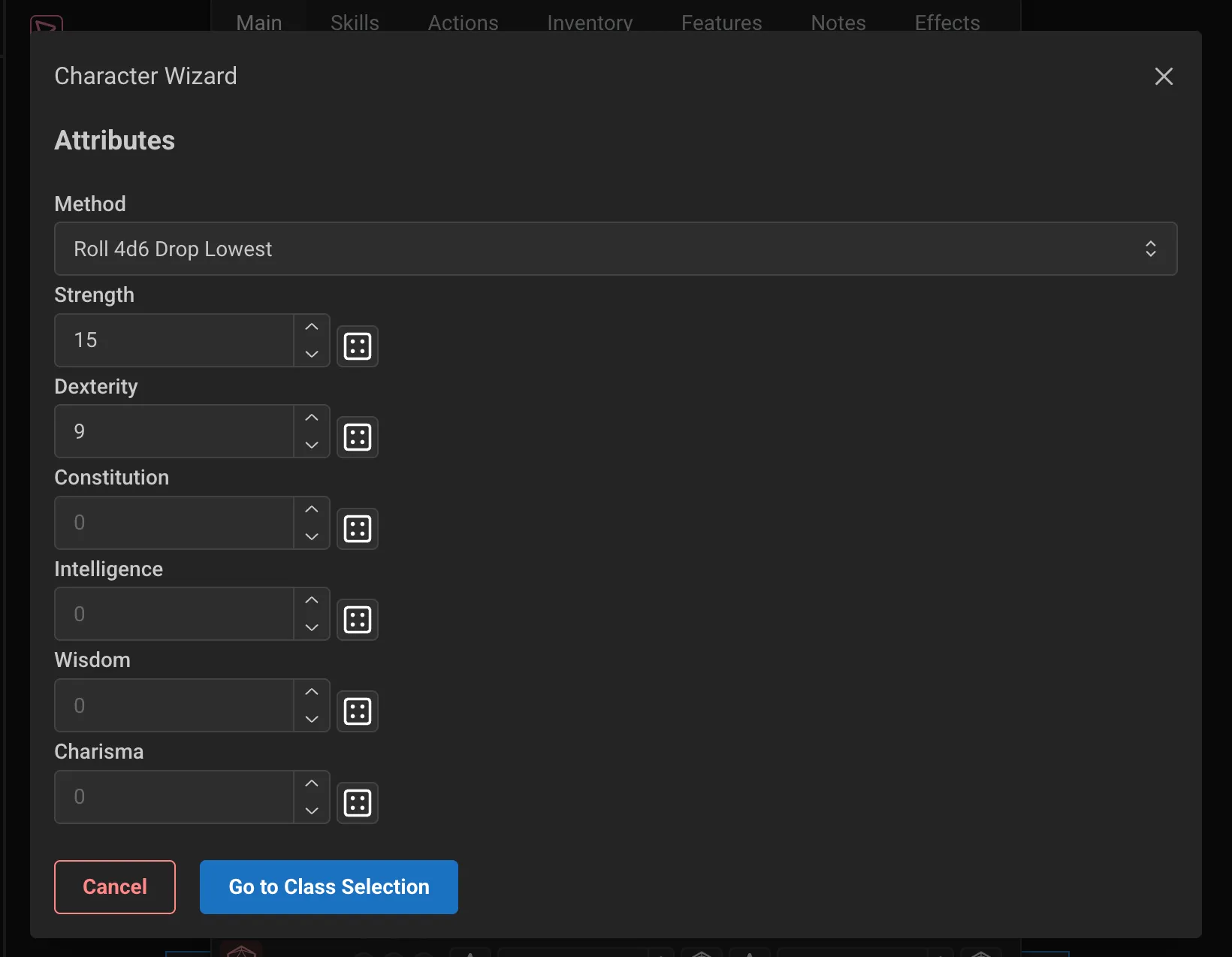
Choose from three methods to determine your ability scores:
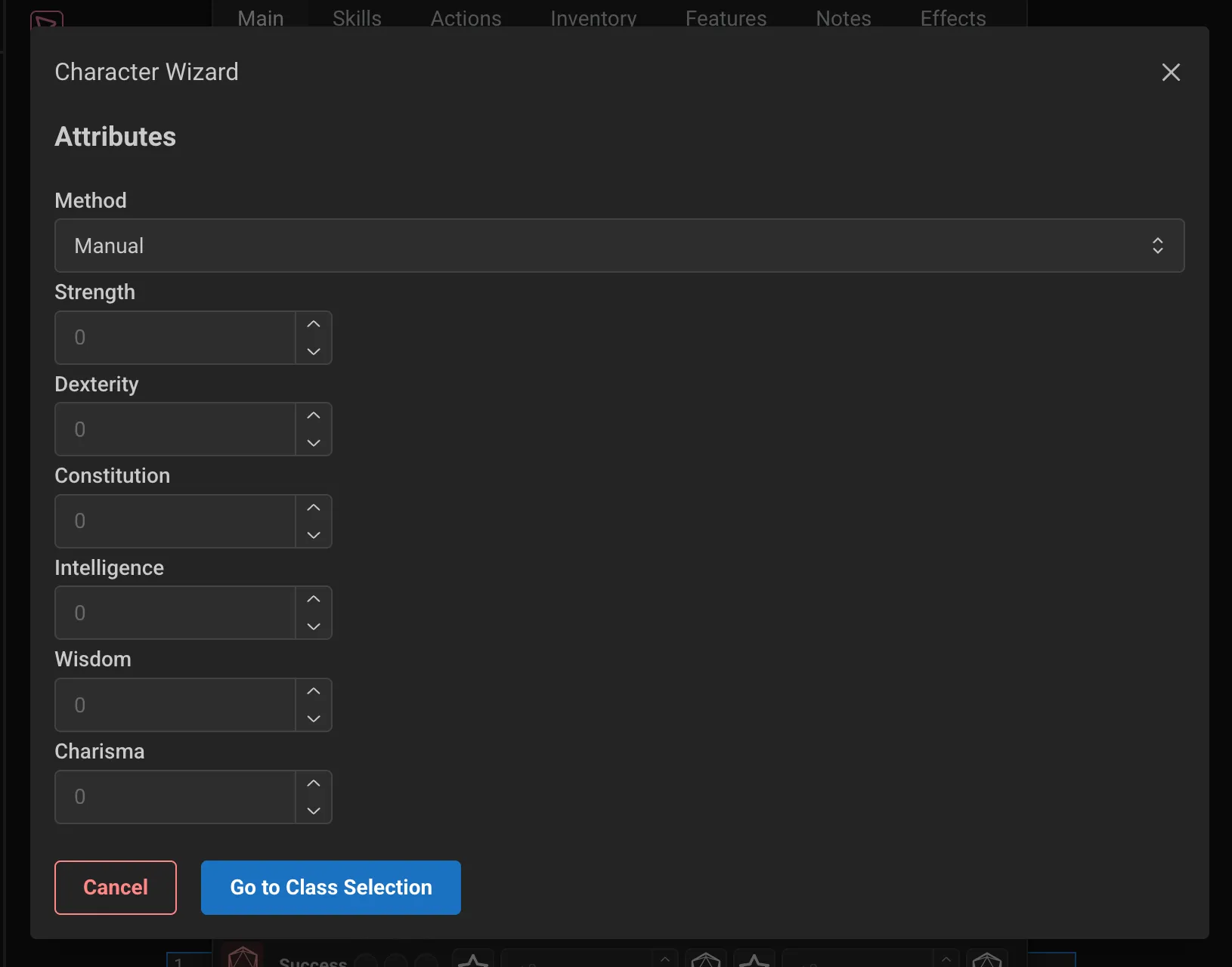
Manual Entry - Type your scores directly (useful for pre-rolled stats or custom arrays)
Roll 4d6 Drop Lowest - Click the dice button next to each ability to roll 4d6 and drop the lowest die
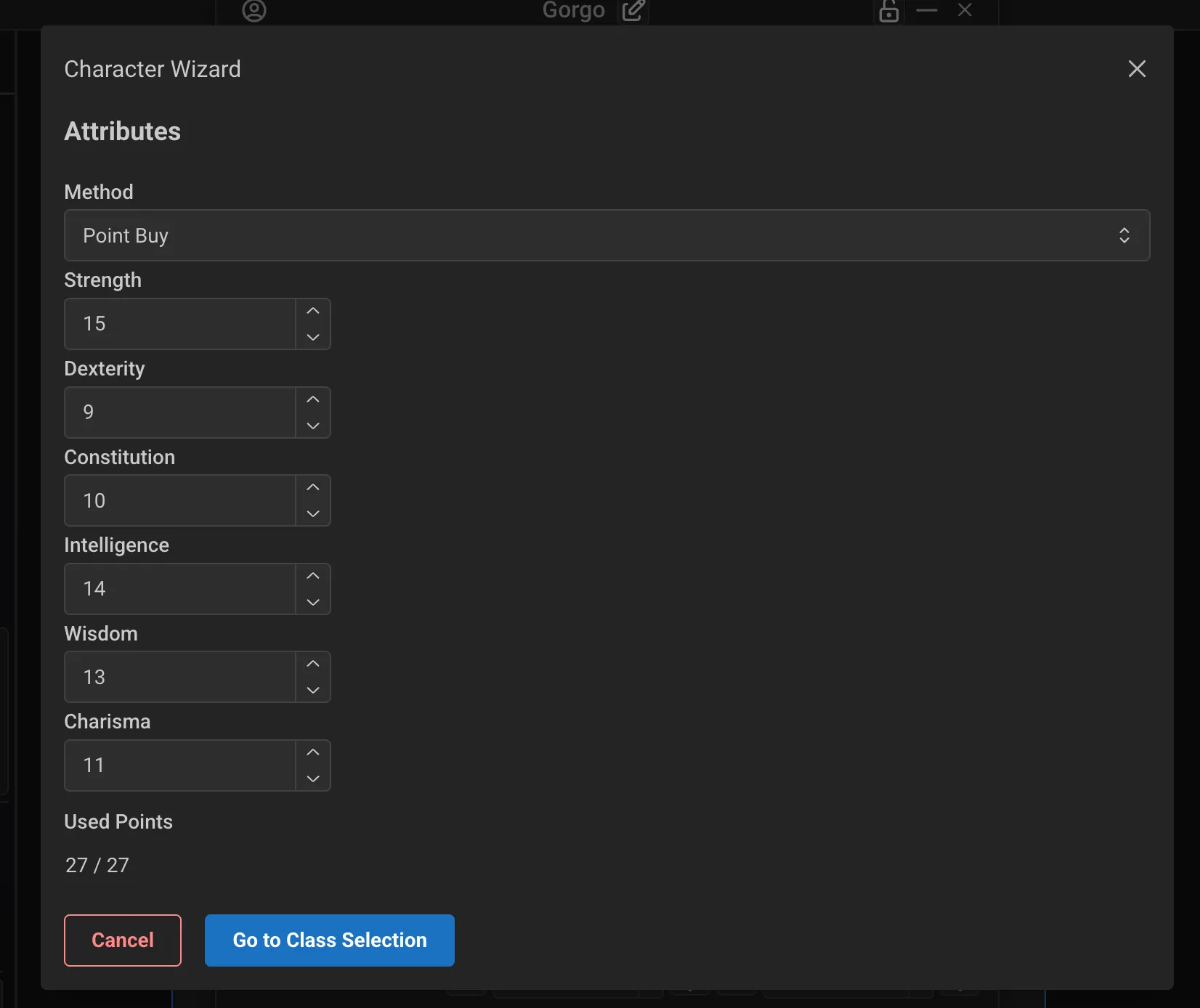
Point Buy - Allocate 27 points across your abilities
Each ability starts at 8 (costs 0 points)
Raising to 9 costs 1 point, 10 costs 2, etc.
Maximum of 15 before racial bonuses
The system tracks your spent points and shows errors if you exceed limits
Step 2: Class Selection
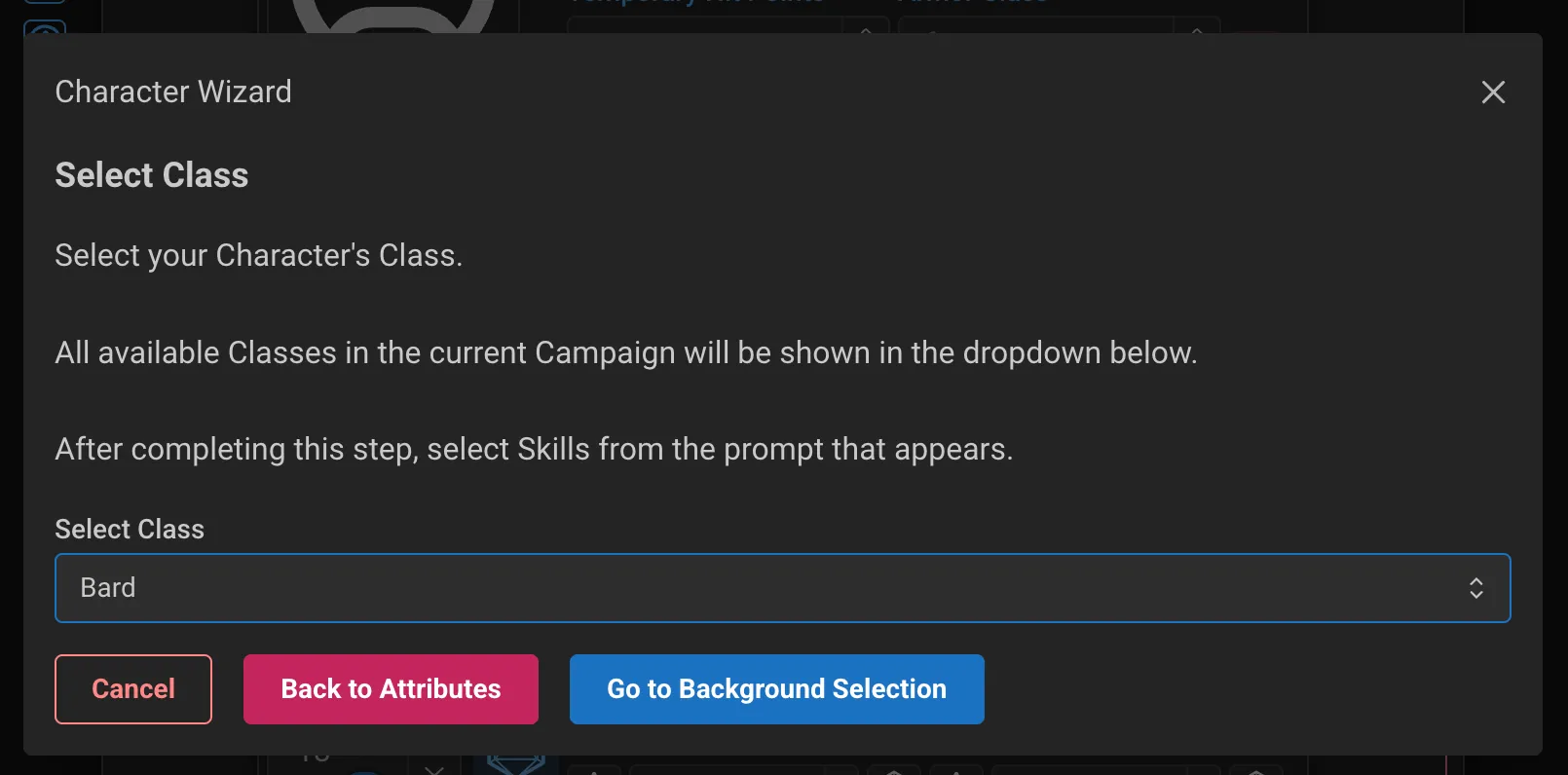
Select your class from the dropdown menu. This will:
Set your hit die
Apply saving throw proficiencies
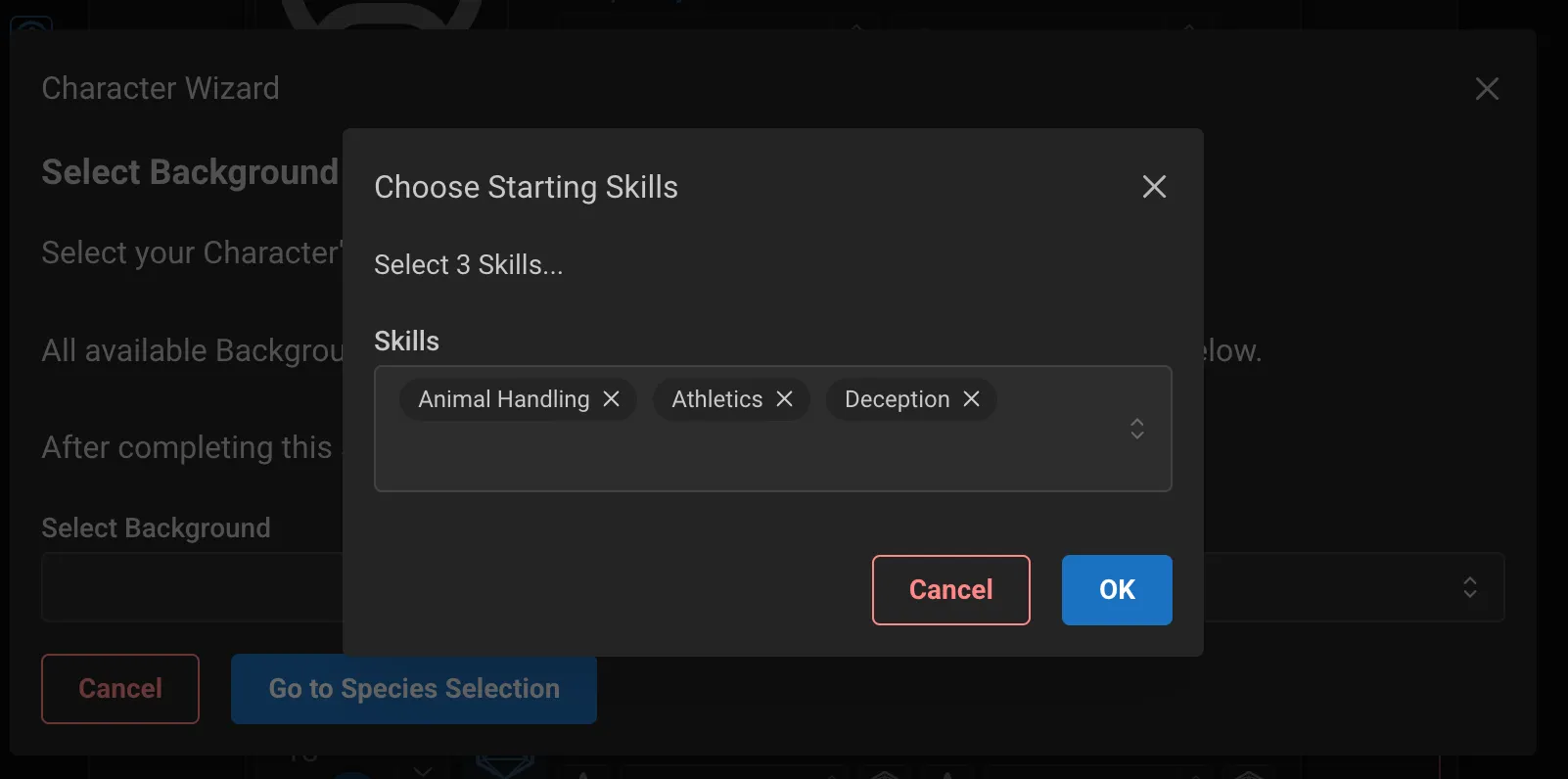
Prompt you to select skill proficiencies based on your class options
Set your spellcasting ability (if applicable)
Tip: After selecting your class, a prompt appears to choose your skill proficiencies.
Step 3: Background Selection
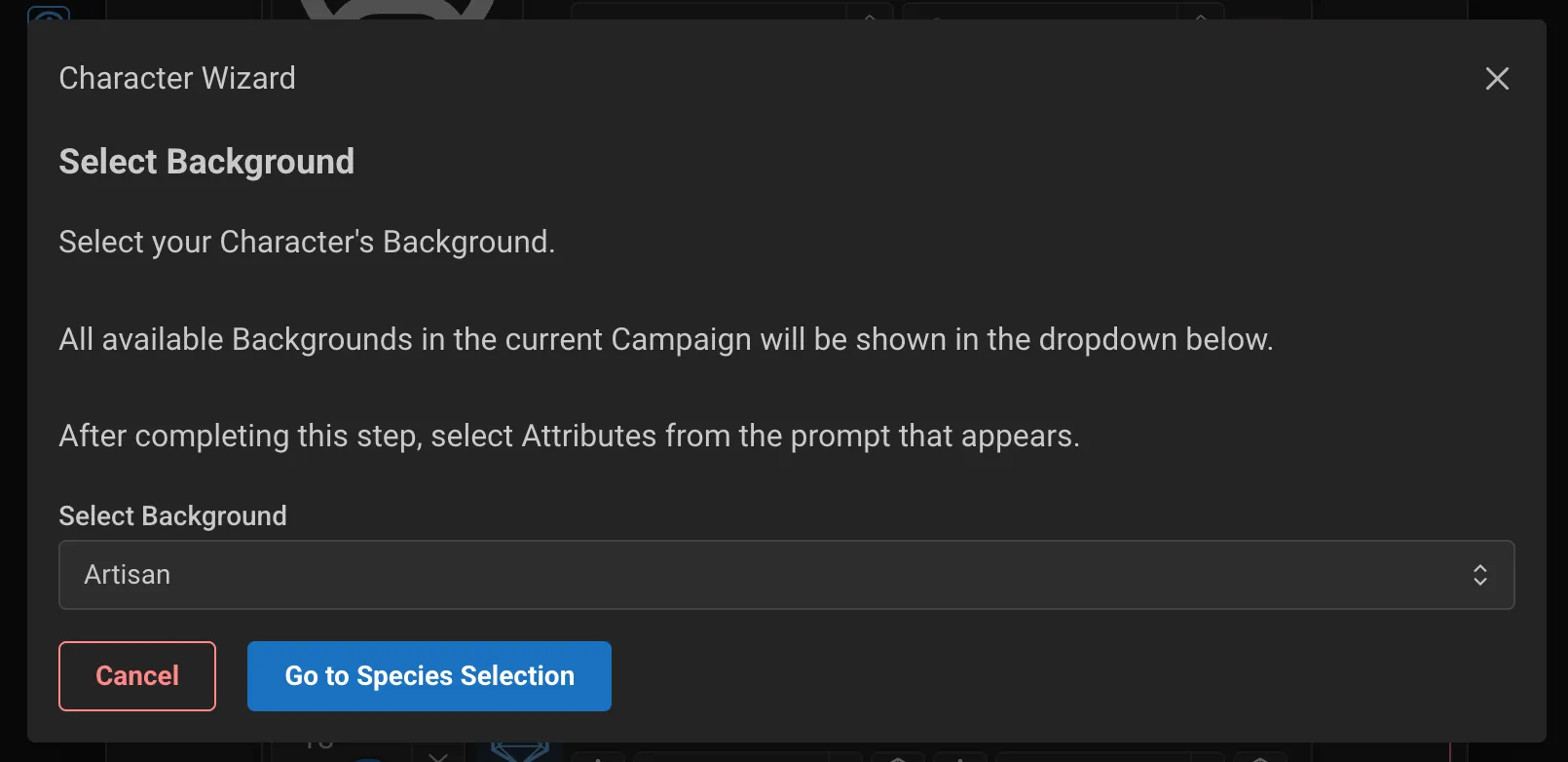
Select your background to:
Gain additional skill proficiencies
Receive your Origin Feat automatically
Get your ability score increases applied
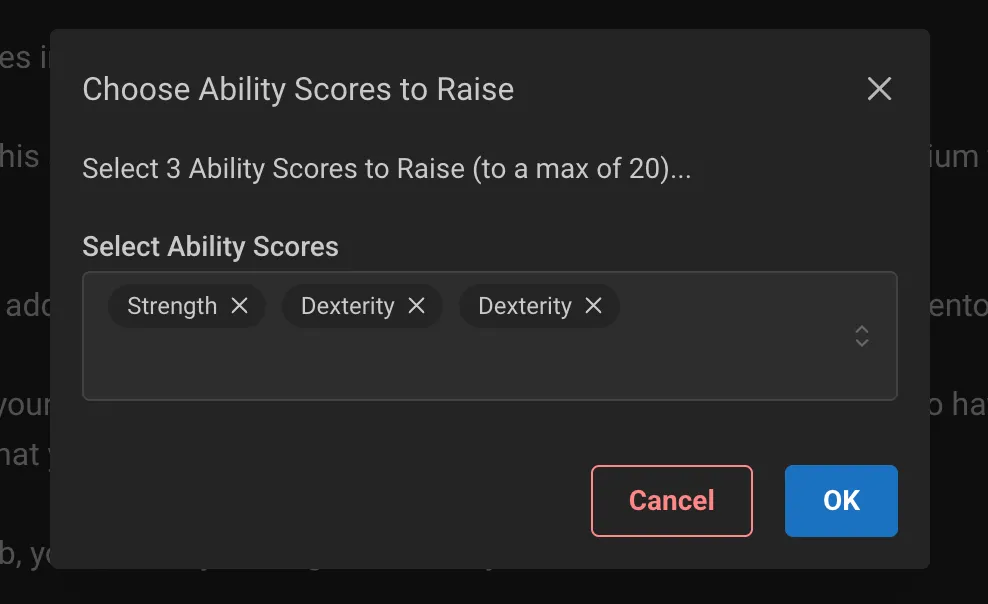
Tip: After selecting your background, a prompt appears to choose your attribute bonuses. Make your selections carefully! You can select more than one twice.
Step 4: Species Selection
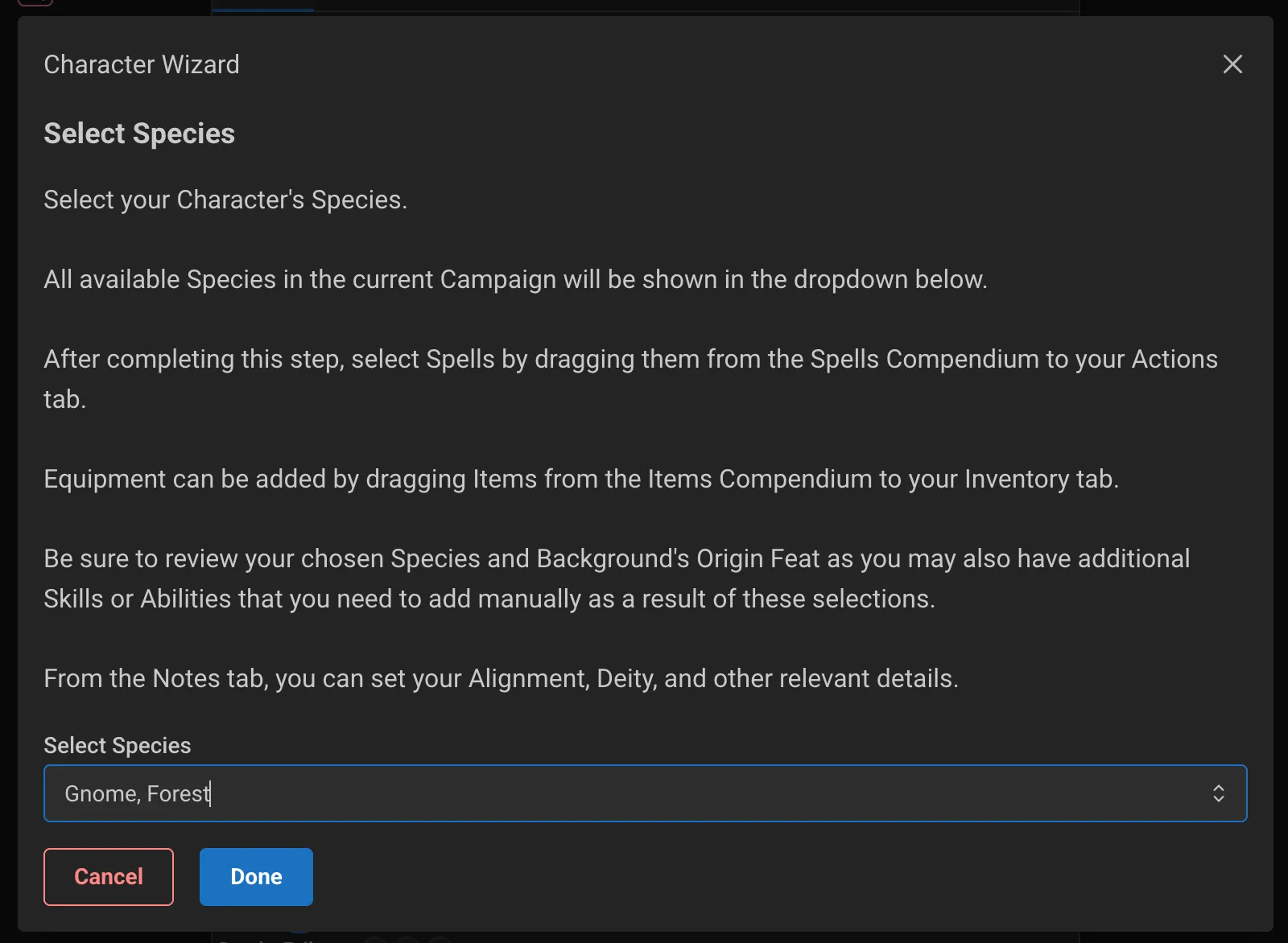
Select your species to apply:
Creature type
Size
Speed
Special senses
Racial features
Important: After completing the wizard, you'll need to manually:
Add spells by dragging them from the Spells compendium to your Actions tab
Add equipment by dragging items from the Items compendium to your Inventory tab
Review your Origin Feat for any additional choices
The Character Sheet
The character sheet has six main tabs:
Main Tab
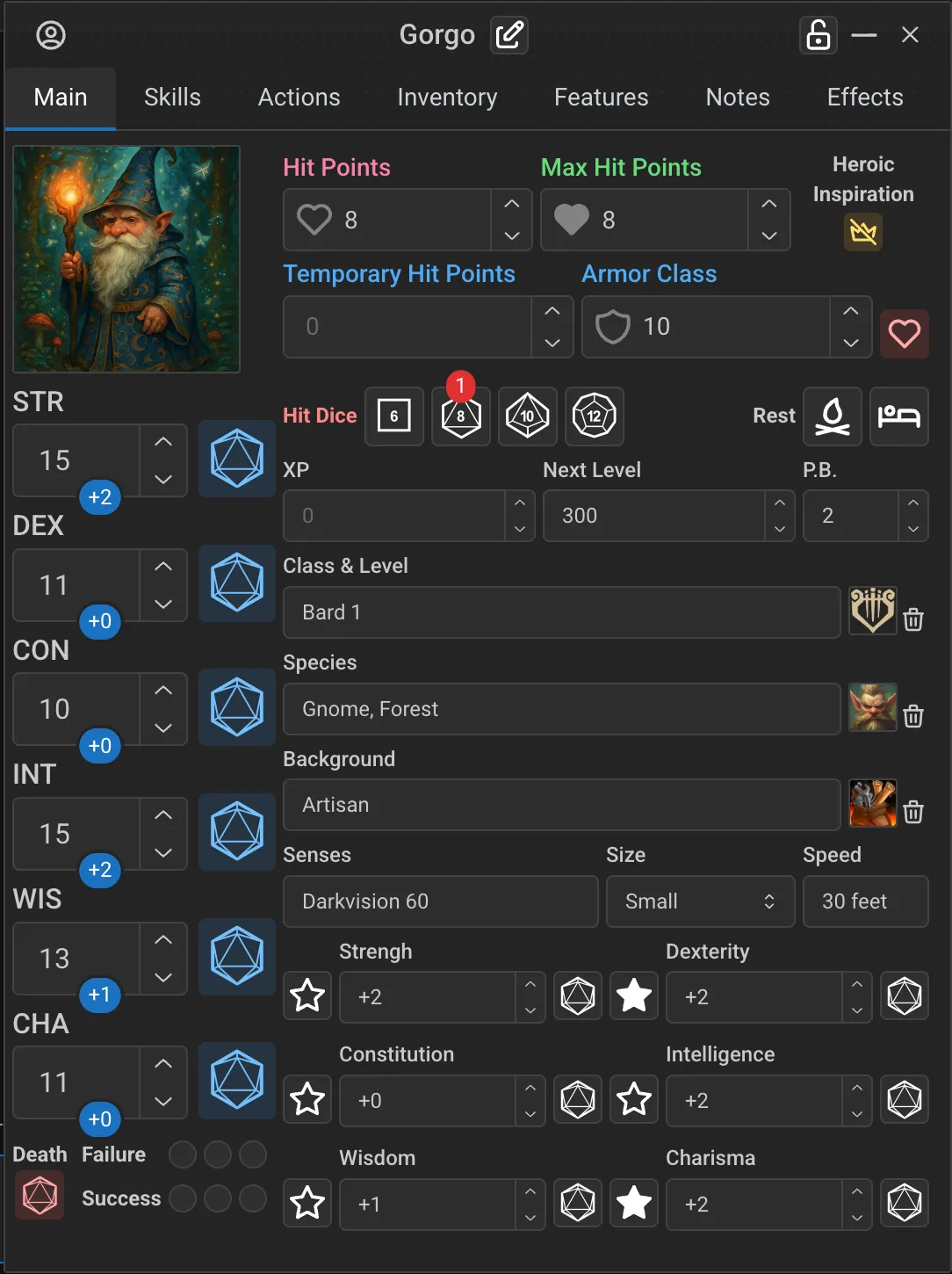
The Main tab displays your core statistics:
Portrait: Click to upload a character image
Class and Level: Adjusted automatically when you add a Class. If you Level Up using the Level Up button on the Main tab or by dragging a Class, it will update here as well.
Ability Scores: STR, DEX, CON, INT, WIS, CHA with modifiers
Saving Throws: Proficient saves are automatically calculated
Hit Points: Current, Maximum, and Temporary HP
Armor Class: Automatically calculated based on equipped armor
Senses: Darkvision, Blindsight, etc. If formatted as "Darkvision #" Realm VTT will automatically apply the Darkvision effect on maps without light for your tokens.
Speed: Your movement speed
Proficiency Bonus: Updates automatically based on level
Experience Points: Track your XP here
Hit Dice: Shows available hit dice by type
HP by Level: Click on the Heart Icon to edit your HP received per level
Rolling Ability Checks and Saves
Click the dice icon next to any ability modifier to make an ability check, or next to a saving throw to make a save. The system automatically includes:
Your ability modifier
Proficiency bonus (for proficient saves)
Any active effects or bonuses
Skills Tab
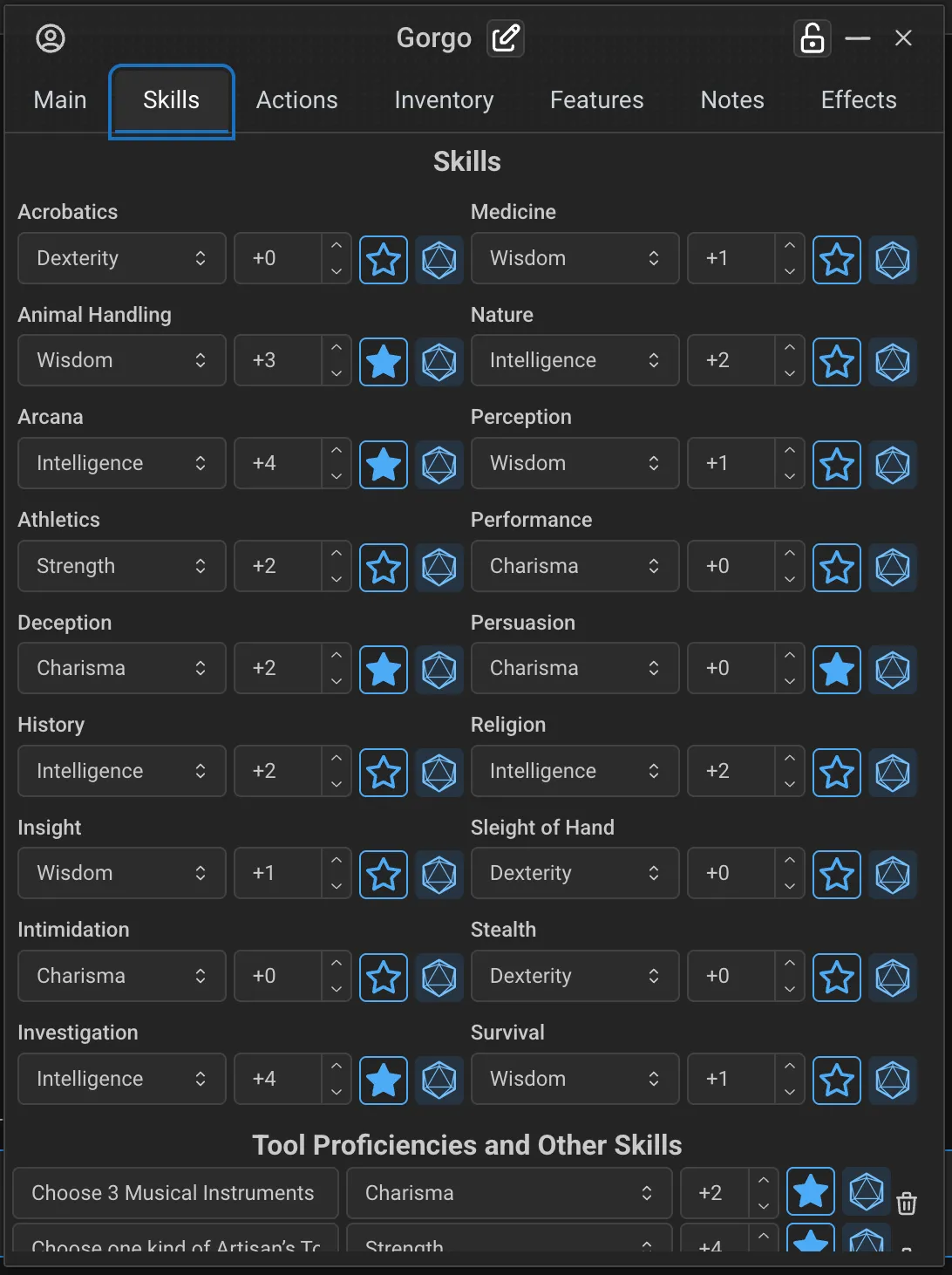
The Skills tab shows all 18 D&D skills with:
Proficiency Toggle: Click to cycle through Unproficient, Half-Proficient, Proficient, and Expertise
Ability: Can be changed for variant skill checks (e.g., Strength-based Intimidation)
Modifier: Automatically calculated
Roll Button: Click to roll the skill check
Custom Skills and Proficiencies
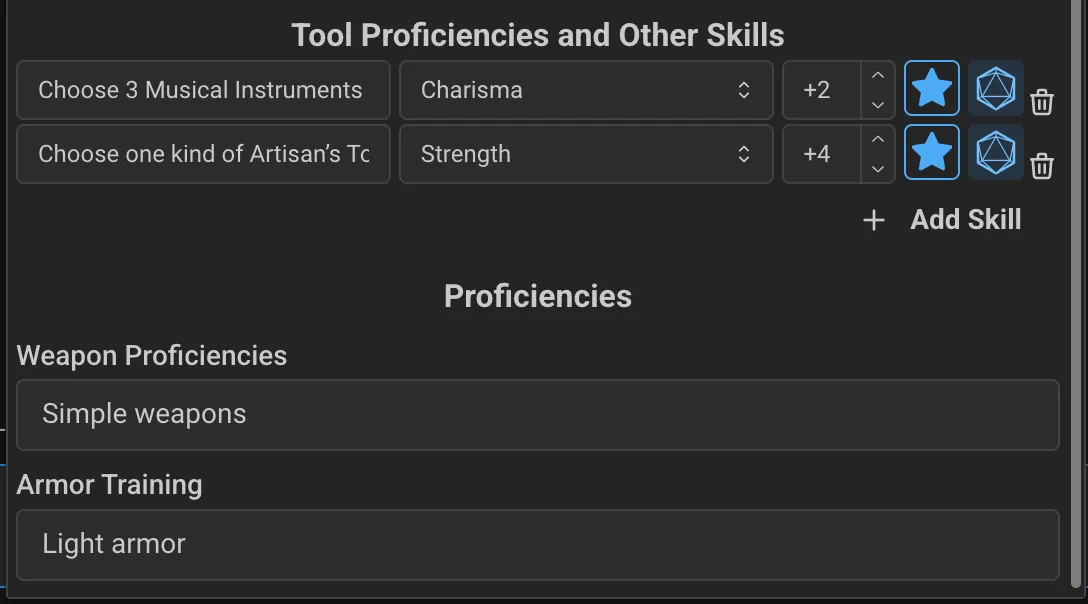
At the bottom of the Skills tab, you can add custom skills for campaign-specific abilities or unusual checks.
Your proficiencies for Weapons and Armor are added here as well when you add a Class. Make sure it is formatted as expected per the rules in 5e so that Proficiencies are applied when rolling attacks.
Actions Tab
The actions tab contains most of your actions needed for combat. It allows you to:
Roll Initiative: Use the initiative button on the right
Roll Attacks and Damage: Equipped weapons from the Inventory tab appear as attacks here
For each weapon, if it's Ranged, you will have a field for tracking Ammo that is automatically deducted on Attack roll. If it is a throwing weapon, click the Sword icon to change to a Ranged attack.
For dual-wielding, Click the "1" Icon until it shows "0" to signify if a weapon is an Off-hand attack
For two-handed versatile weapons, click the "1" icon to change it to "2" to signify it is used with 2 hands.
View or Edit Spells or Abilities: Click on the icon for a spell, ability, or attack to view more details in a new window.
Add or Use Abilities: Some Features or Class Features grant Abilities that can be used on this Tab. You can also edit their each Ability section to define how many uses you have, how it gets modifiers, etc.
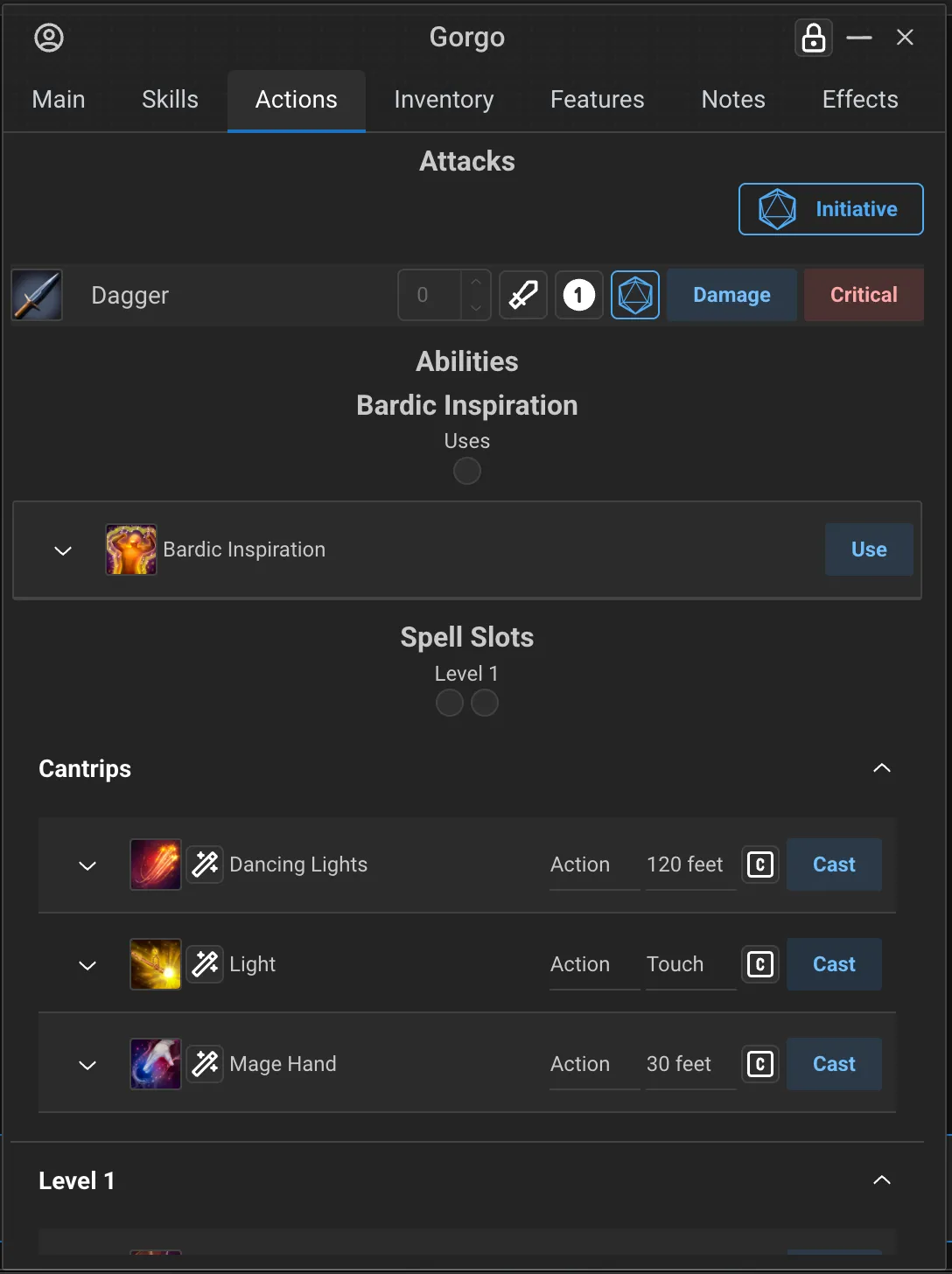
The Actions tab also manages your spells and spell slots:
Spell Slots: Track remaining slots for levels 1-9
Cantrips: Always available spells at the top
Leveled Spells: Organized by spell level
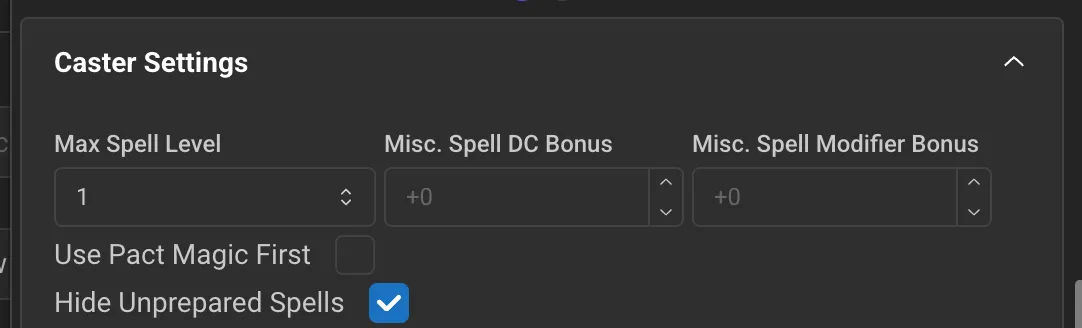
Spell Caster Settings: This section appears if the Character Sheet is Unlocked for editing (using the Lock icon in the top right) and lets you configure which spell levels you have access to, as well as settings for Warlocks, or hiding Unprepared spells.
Tip: You can drag any button such as "Use", "Attack", "Cast", etc to the Hotbar below in order to make a short cut for this action.
Adding Spells
Open the Spells compendium from the top bar
Find the spell you want
Drag and drop the spell onto the Actions tab
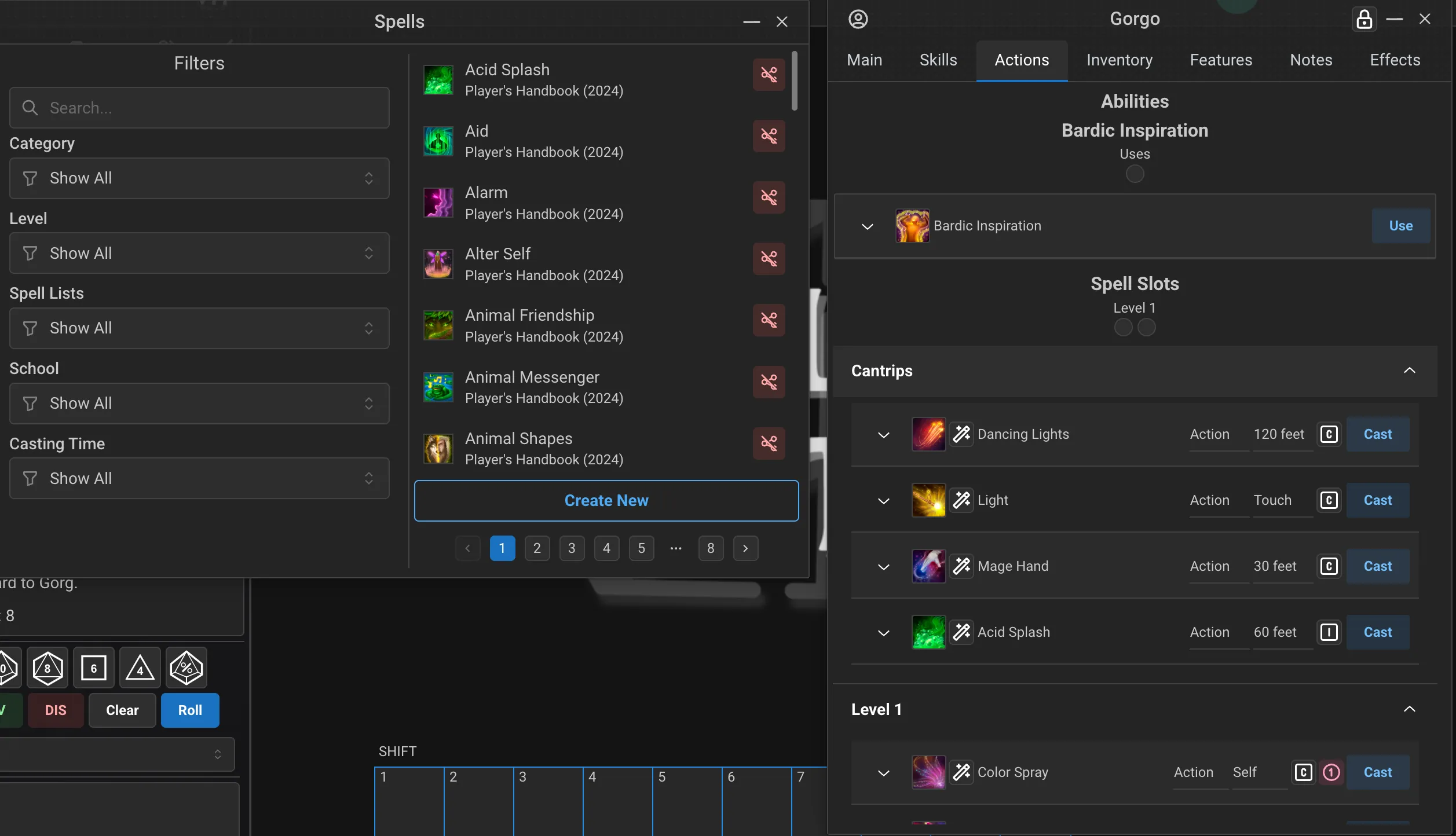
The spell will automatically appear at the correct level section.
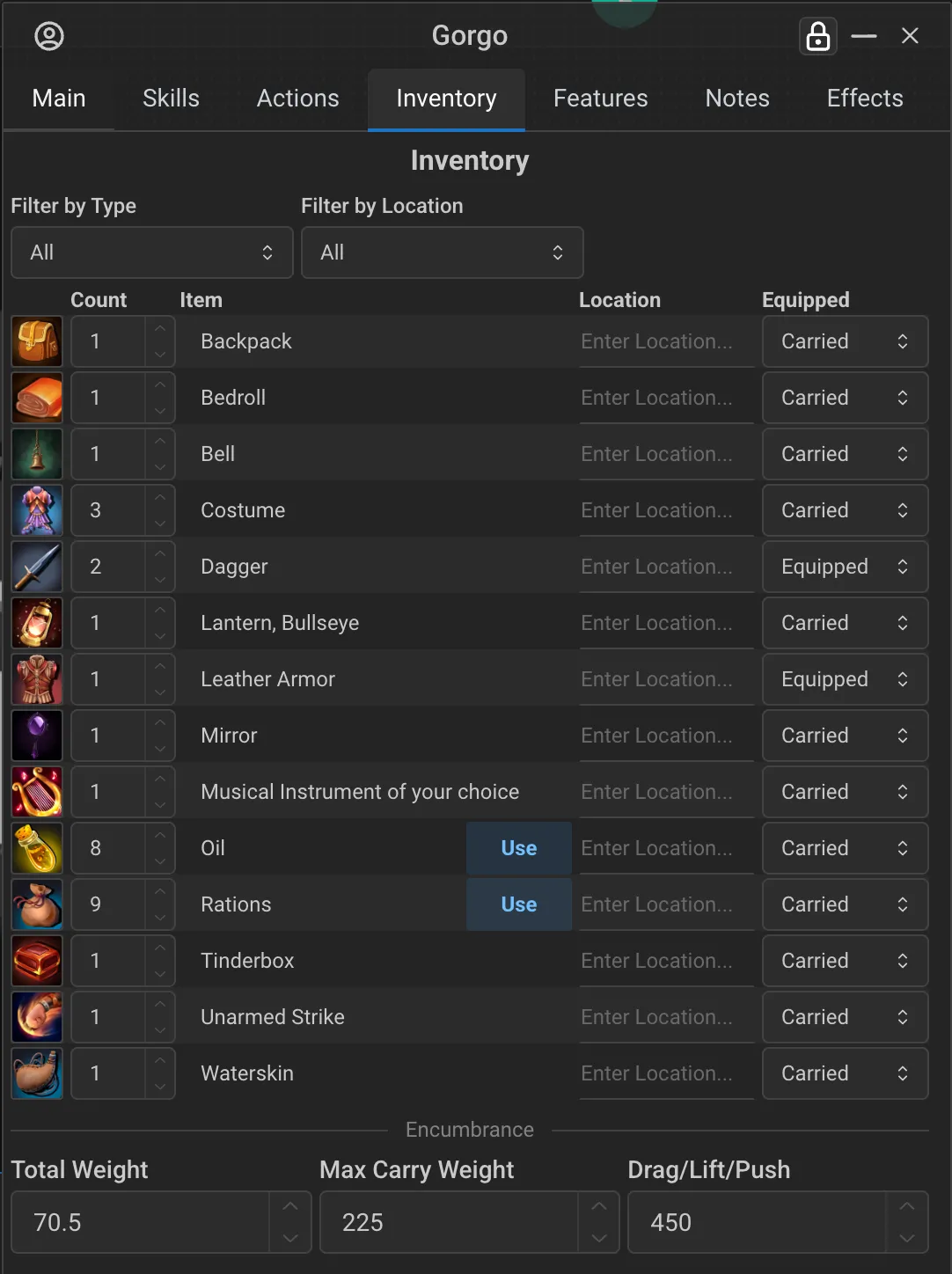
Inventory Tab
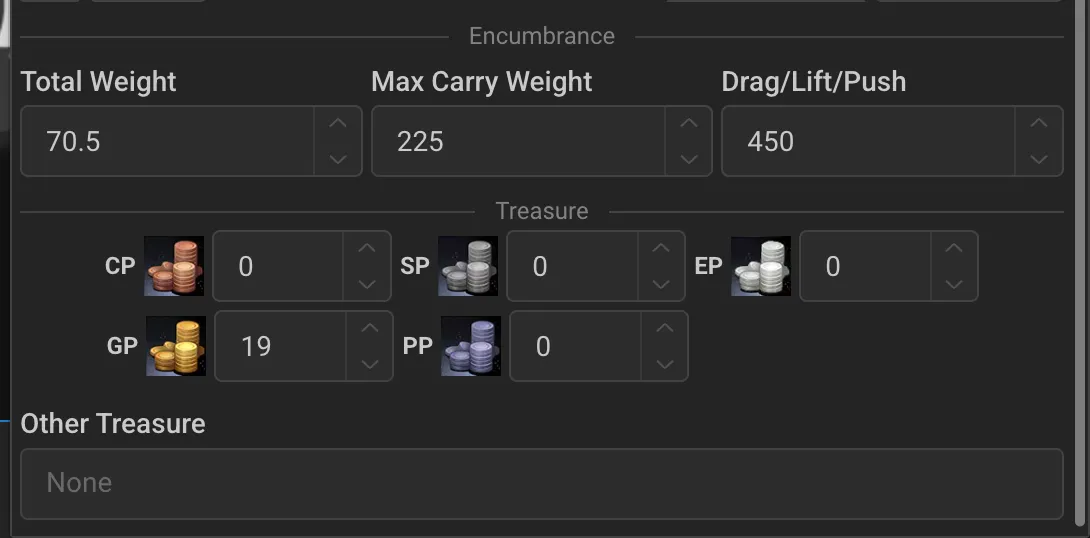
 Treasure
The Inventory tab manages your equipment:
Equipment List: All carried items with quantity and weight
Currency: CP, SP, EP, GP, PP tracking
When the character sheet is unlocked, you can use the Add/Subtract/Redistribute convenience buttons
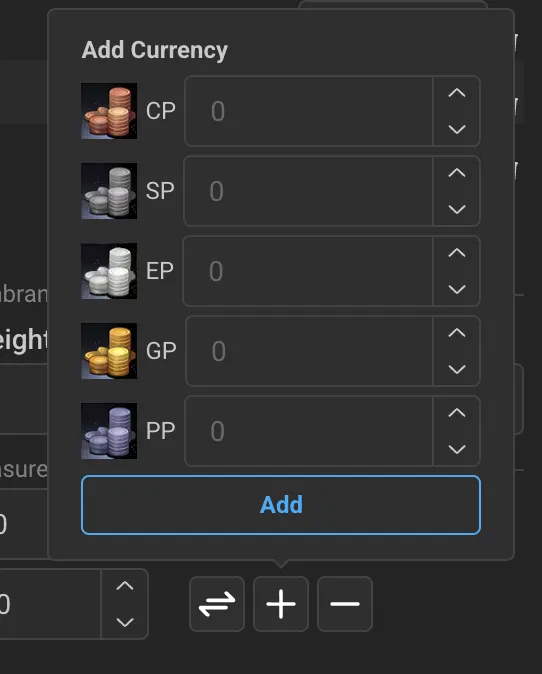
Total Weight: Automatically calculated (optional coin weight)
To add coin weight, go to the Settings in the top-right Settings menu (click the Avatar) if you're the GM in the campaign
Equipment Slots: Main hand, Off hand, Armor
Adding Items
Open the Items compendium from the top bar
Find the item you want
Drag and drop the item onto the Inventory tab
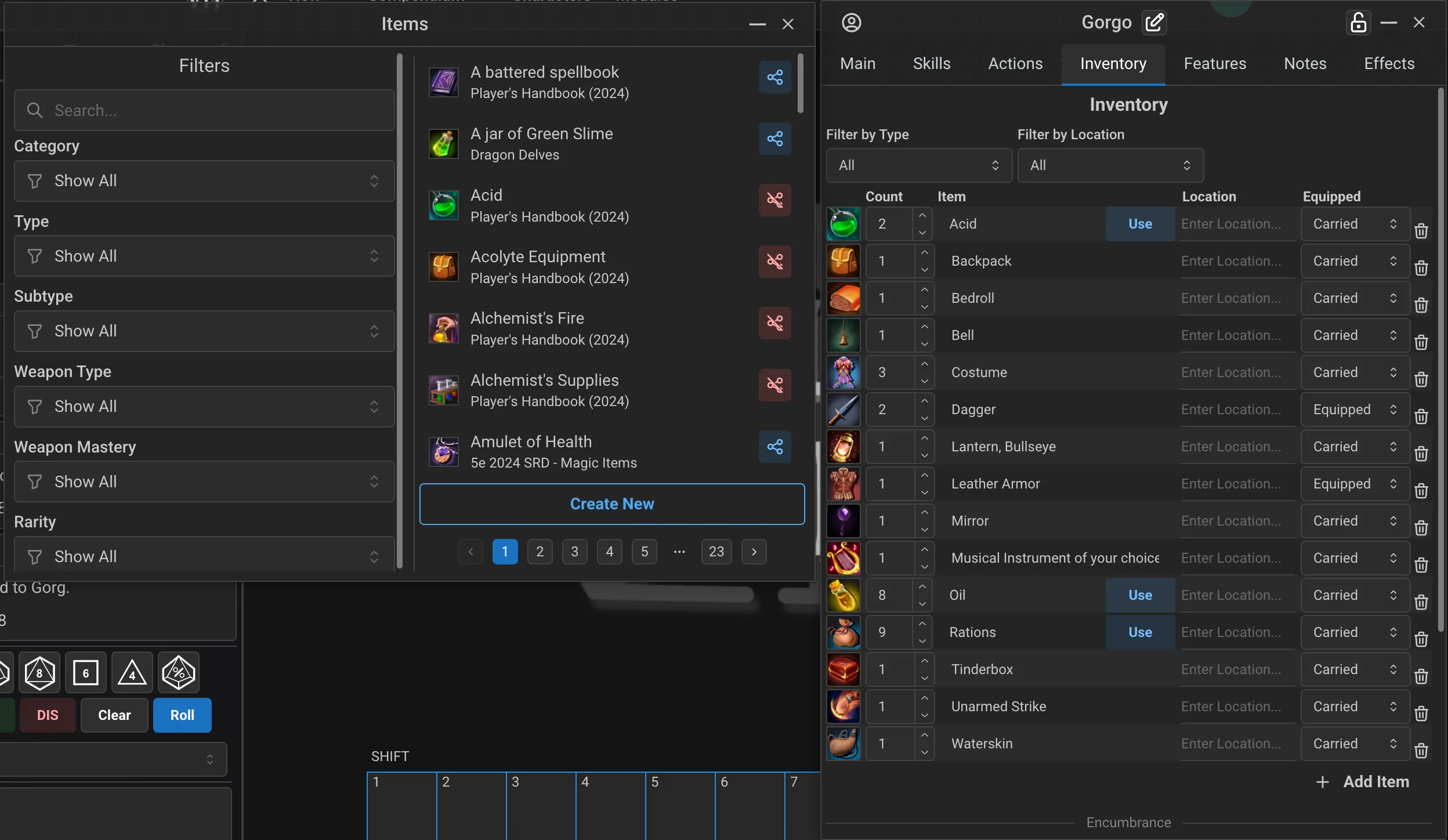
Tip: If you drag the same item multiple times, it will increase the quantity rather than creating duplicates! Once in the inventory, you can right-click an Item to delete it or create a duplicate.
Item Packs
Item Packs (like "Explorer's Pack" or "Dungeoneer's Pack") automatically unpack their contents when dropped:
All items are added to your inventory
Any currency in the pack is added to your purse
Features Tab
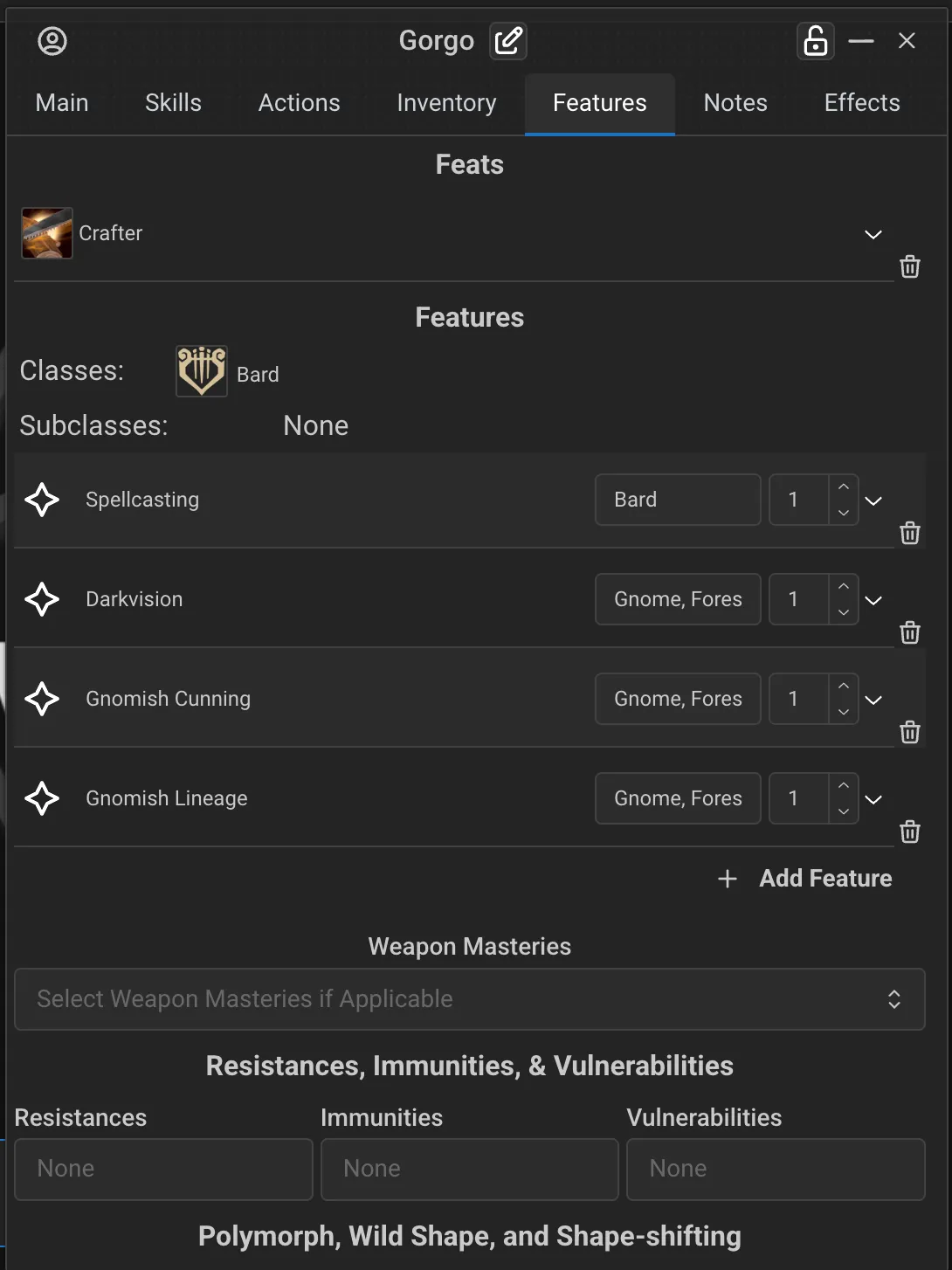
The Features tab displays:
Feats: Your Origin Feat and any additional feats
Class Features: Gained from your class and subclass
Classes/Subclasses: Shows your chosen classes and subclasses
Weapon Masteries: Select which weapons you've mastered (2024 rules)
Resistances, Immunities, and Vulnerabilities: Set by damage type
Shape-shifting: Wild Shape and Polymorph support (drag and drop an NPC to this tab to Polymorph or Wildshape with stats and token changes set automatically!)
Adding Feats (and Eldritch Invocations)
Open the Feats compendium from the top
Find the feat you want
Drag and drop the feat onto the Features tab
Note: Eldritch Invocations are implemented as feats with the type "Eldritch Invocation (Warlock Only)". Add them to your Features tab the same way you add feats!
Notes Tab
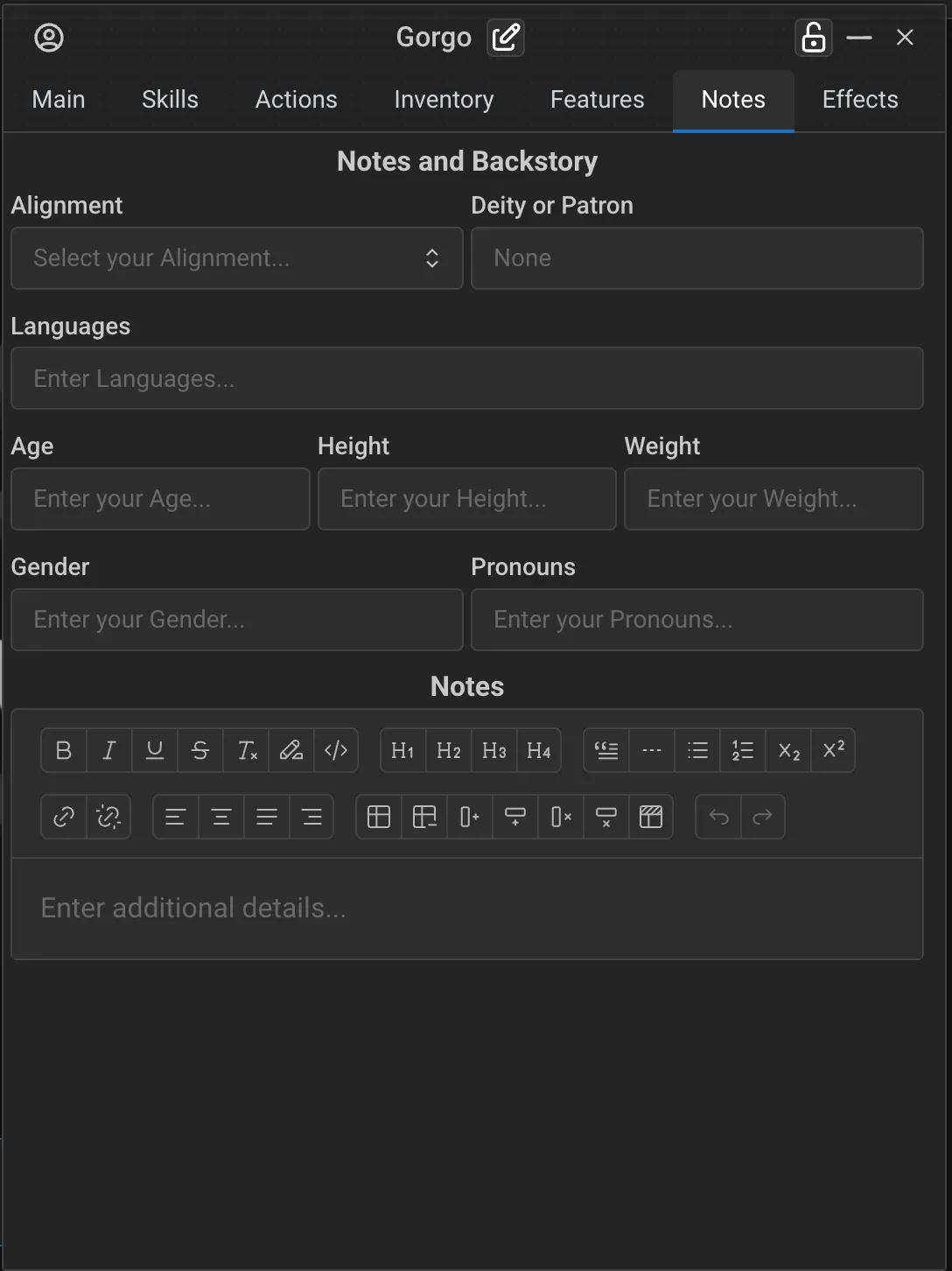
The Notes tab provides a rich text editor for:
Character backstory
Session notes
Appearance description
Goals and bonds
Any other notes you want to keep
Managing Spells
Spell Slots
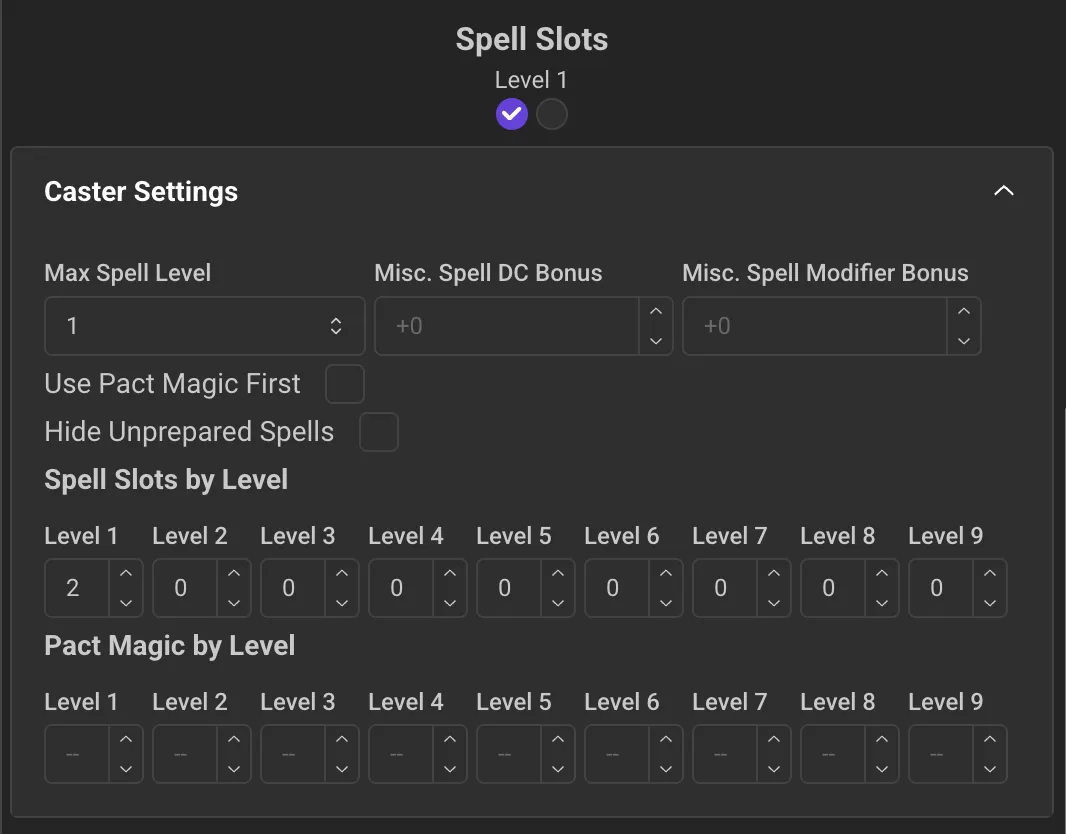
Spell slots are displayed as counters at the top of the Actions tab:
Click the radio buttons to mark a spell slot used, or to unmark if used
The Caster Settings section lets you change your available spell slots
Casting Spells
Each spell in your list shows:
Spell name and level
School of magic
Casting time, range, components, duration
Full description
A "Cast" button
Click on a spell to expand it and see all details. Use the cast button to send the Spell Details to the Chat. From the card in the Chat, click any button that appears to roll any associated attacks or damage. The GM should use the Saving Throw buttons for the enemies targeted by Players, or vice-versa.
If a Spell applies an Effect, the macro in the chat can can be Click and Dragged to a Token to add the effect to that Token, or by selecting tokens and clicking the macro for the Effect.
Preparing Spells
For classes that prepare spells, use the preparation toggle on each spell to mark which spells you have prepared for the day, or to make to your Character Sheet load faster, simply delete the spells you do not have prepared.
To mark a spell as unprepared, click the Wand Icon until it shows the Book Icon.
 You can use the settings above to filter spells that are unprepared:
Managing Inventory & Equipment
Item Properties
Each item in your inventory shows:
Quantity: How many you have
Weight: Per item (total calculated automatically)
Equipped Status: Carried, Dropped, or Equipped
Click the Bag Icon to change it to the "Shirt Icon" to mark an item as equipped. A "dropped" item does not count towards carry weight.

Attunement: For magic items requiring attunement

Condition: Note the item's condition
Location: You can use this field to specify a custom location such as "In Backpack" or "At Bastion" - these locations are filterable from the top of the inventory list
Icon: Click the icon for any item in your inventory to view more info or edit it
Weapons in Inventory
Weapons show additional options from the Actions tab:
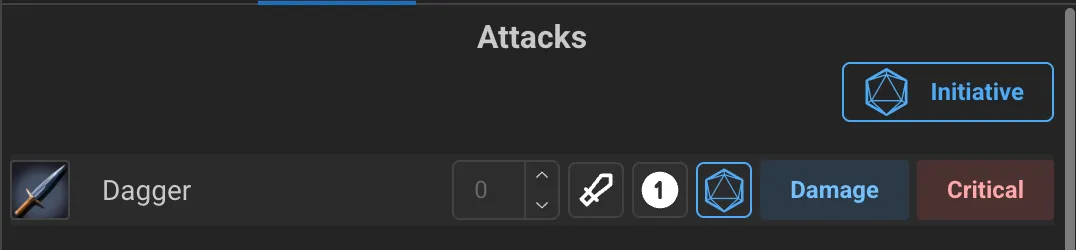
Attack Button: Roll to attack with this weapon
Hand Icons: Equip in main hand, off hand, or two-handed
Melee/Ranged Toggle: For thrown weapons, switch between modes
Ammunition: Track ammo count for ranged weapons
Equipping Armor
Armor items can be set to your equipped armor slot, which automatically updates your AC calculation.

Weight and Encumbrance
The system tracks:
Individual item weight
Total carried weight
Optional coin weight (50 coins = 1 lb)
Feats, Invocations & Features
Feats
Feats in the 2024 rules are categorized by type:
Type | Description |
|---|---|
Origin Feat | Gained from your background at level 1 |
General Feat | Standard feats gained at various levels |
Fighting Style Feat | Combat-focused feats for martial classes |
Epic Boon Feat | Powerful feats for high-level characters |
Eldritch Invocation | Warlock-only magical abilities |
Adding Eldritch Invocations
Warlock Eldritch Invocations are implemented as feats:
Open the Feats compendium
Filter or search for "Eldritch Invocation" or the specific invocation name
Drag the invocation to your Features tab
Note: Invocations appear in your Feats section alongside other feats. They work identically but are marked as Warlock-only.
Ability Score Increases
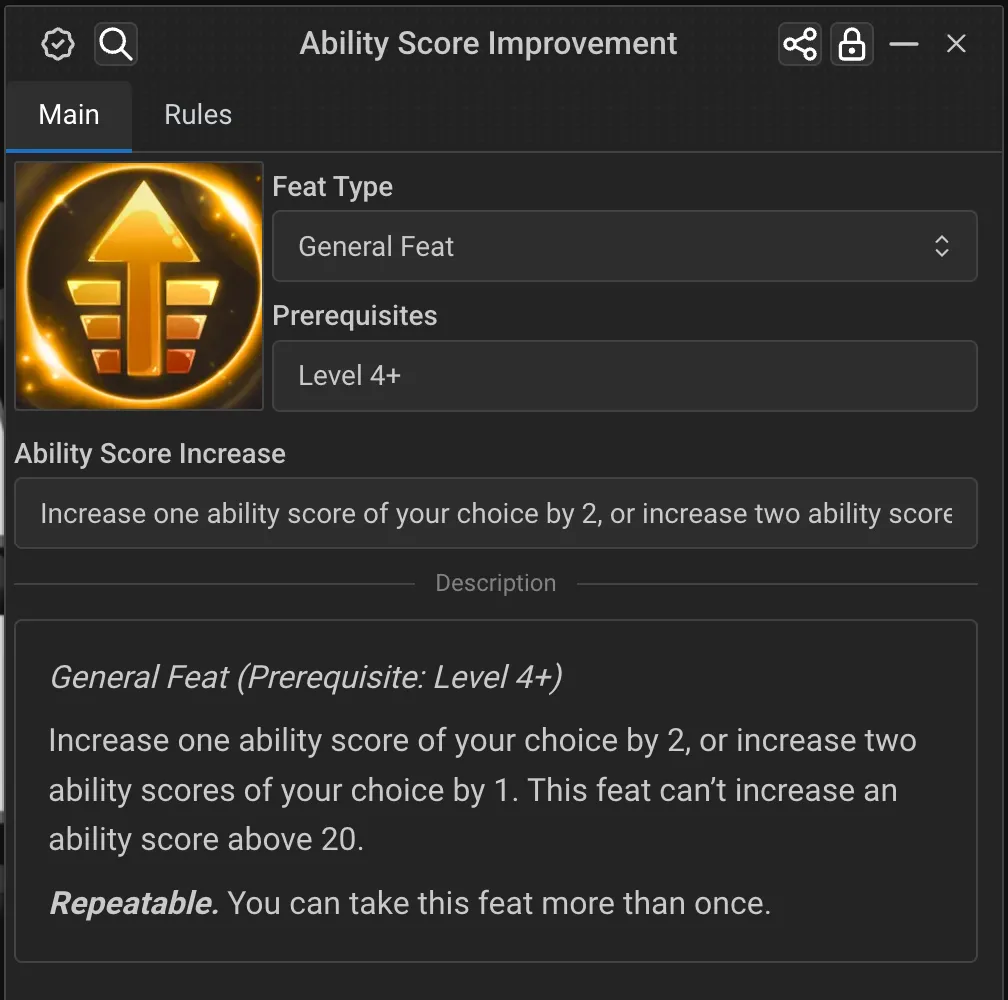
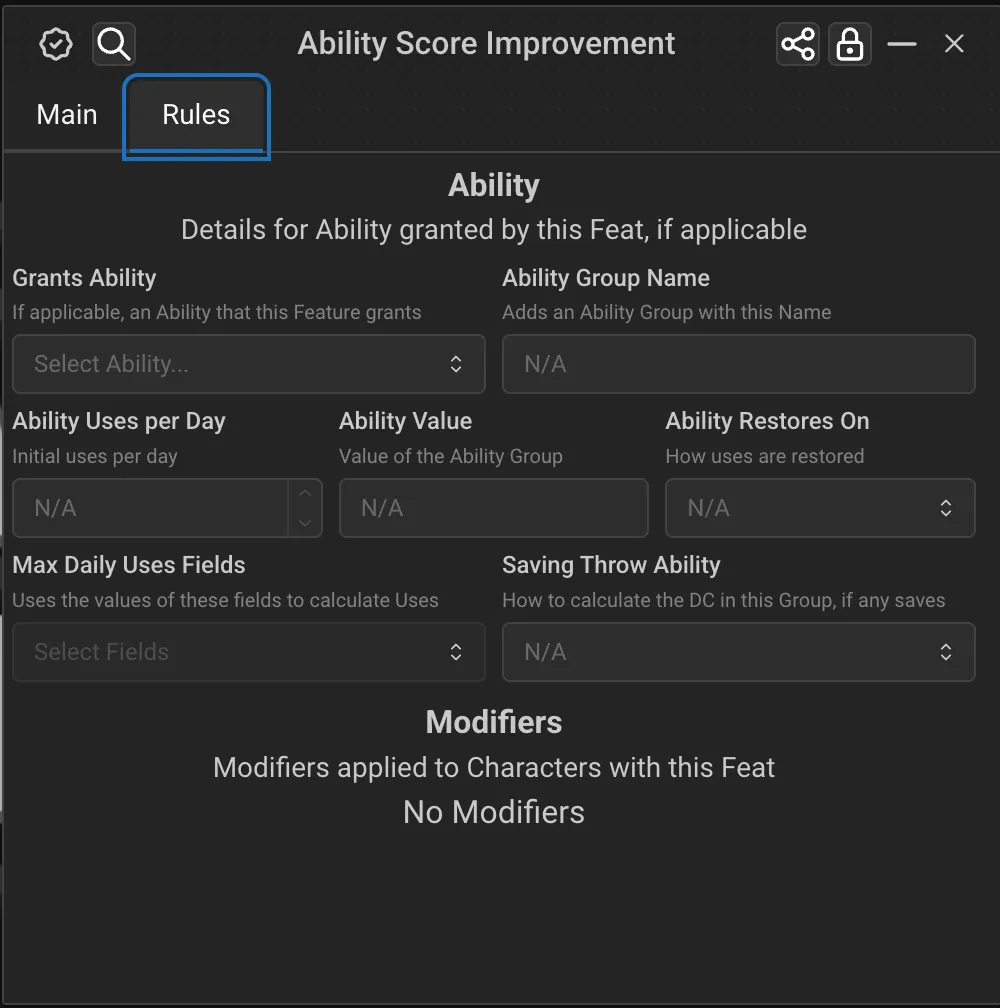
When you add a feat that grants ability score increases, a prompt will appear:
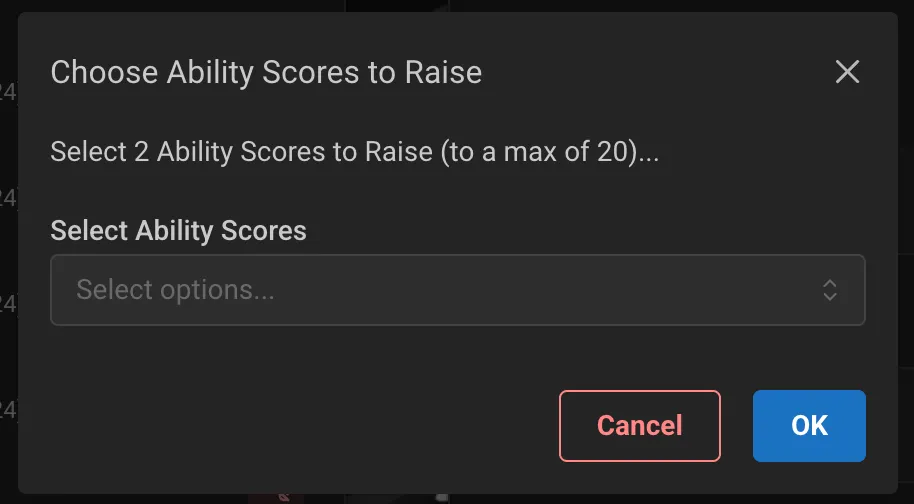
Select which ability scores to increase. The system enforces the maximum (usually 20) automatically.
Creating and Managing NPCs
NPC Types
The NPC sheet supports three types:
Type | Use For |
|---|---|
Creature | Monsters, beasts, humanoid enemies |
Vehicle | Ships, carts, airships |
Trap | Hazards and traps |
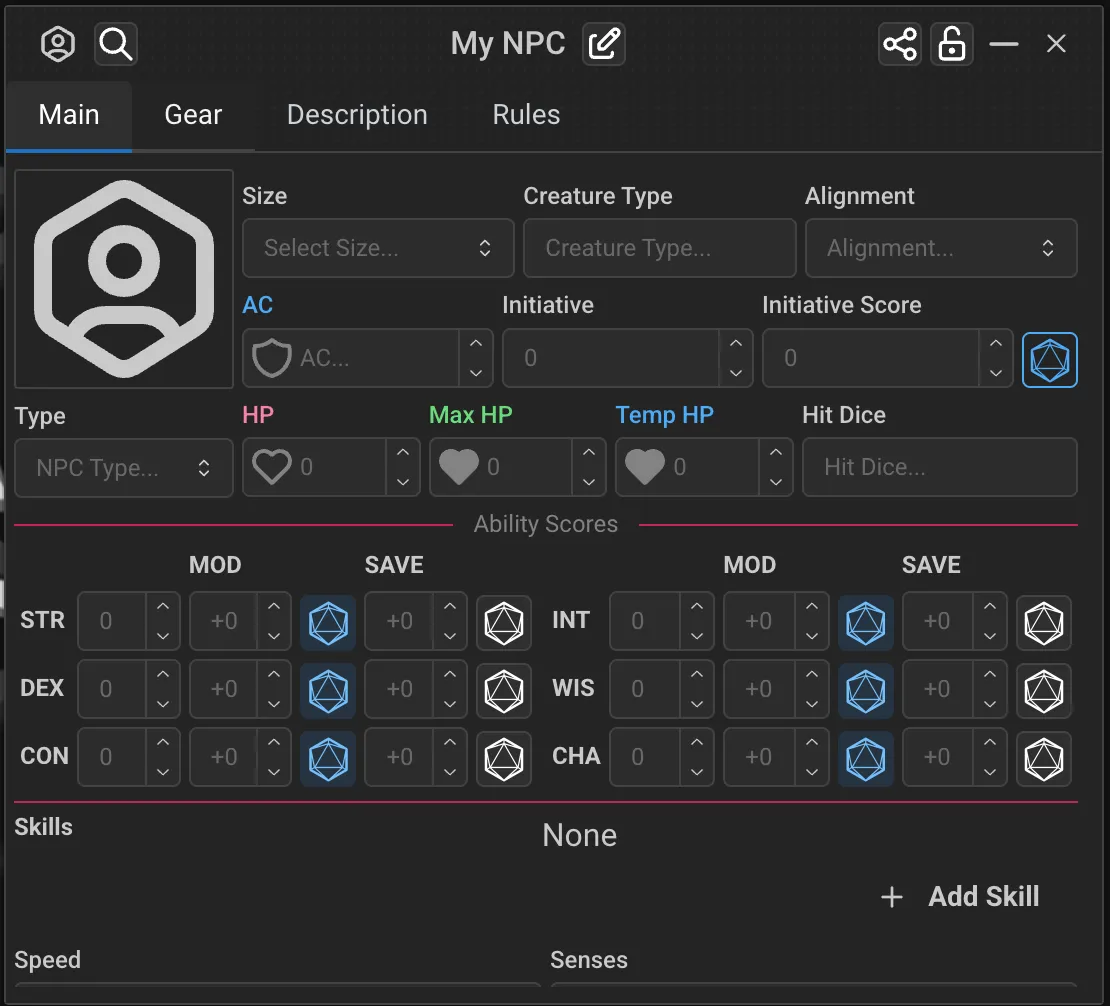
Creating an NPC
Create a new NPC record from the NPCs compendium panel
Fill in the basic information:
Name and portrait
Type (Creature/Vehicle/Trap)
Size and creature type
Alignment
Stats, etc.
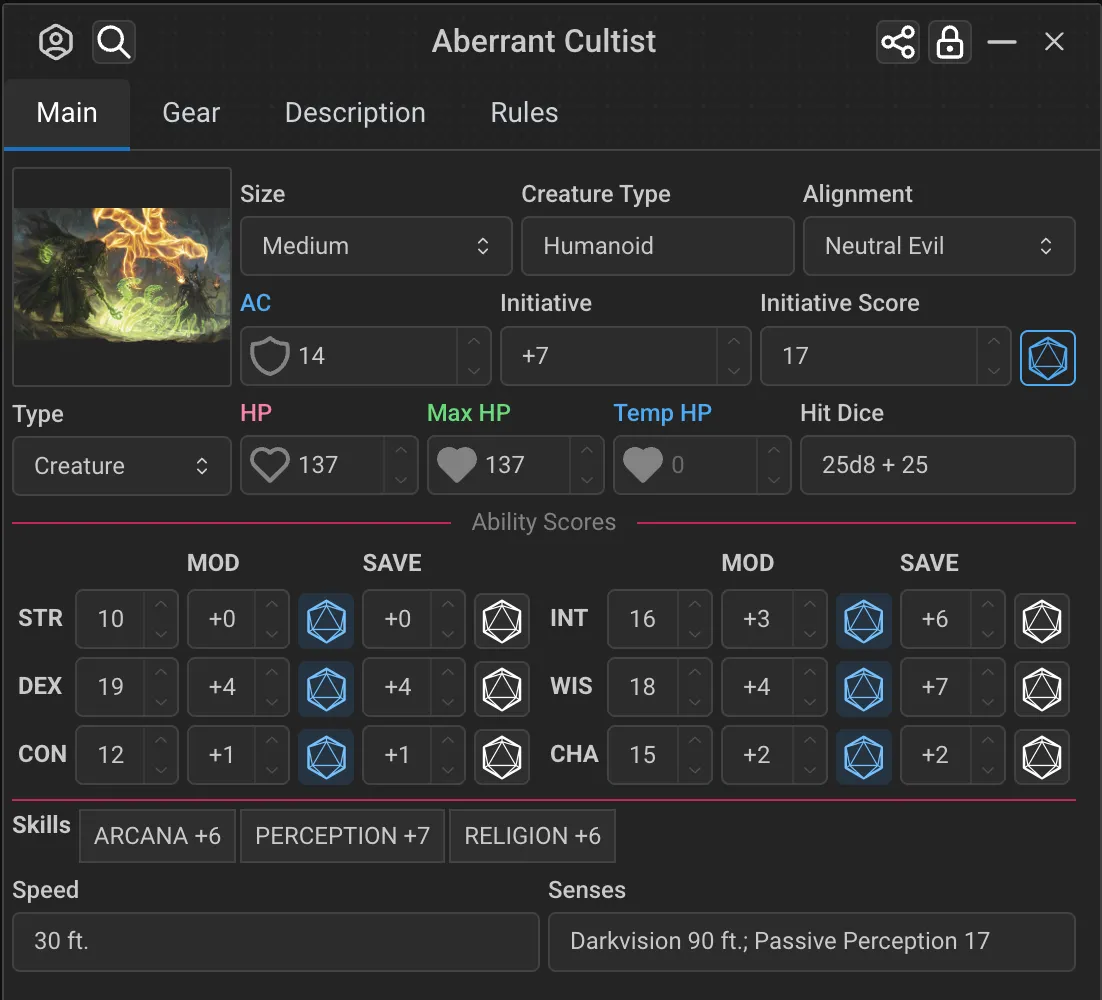
Set ability scores - modifiers and saves calculate automatically
Add Skills, Speed, Senses, and Languages
Set the Challenge Rating - this automatically sets:
XP reward
Proficiency bonus
Level (for spellcasting calculations)
Adding NPC Abilities
Use the checkboxes in the "Subsection Settings" to enable different ability sections:
Section | Description |
|---|---|
Traits | Passive abilities (e.g., Pack Tactics) |
Actions | Standard actions including attacks |
Bonus Actions | Bonus action abilities |
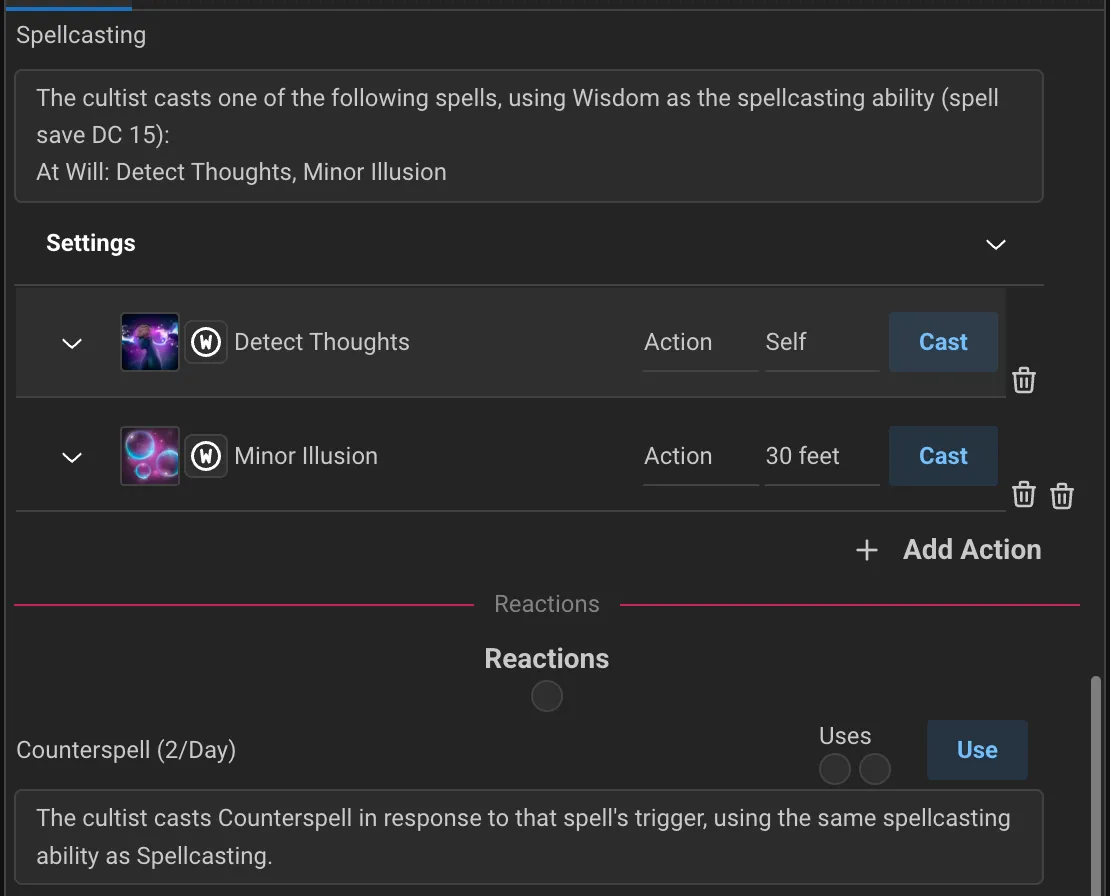
Reactions | Reaction abilities with counter |
Legendary Actions | For boss monsters, with use counter |
Lair Actions | Special actions in the creature's lair |
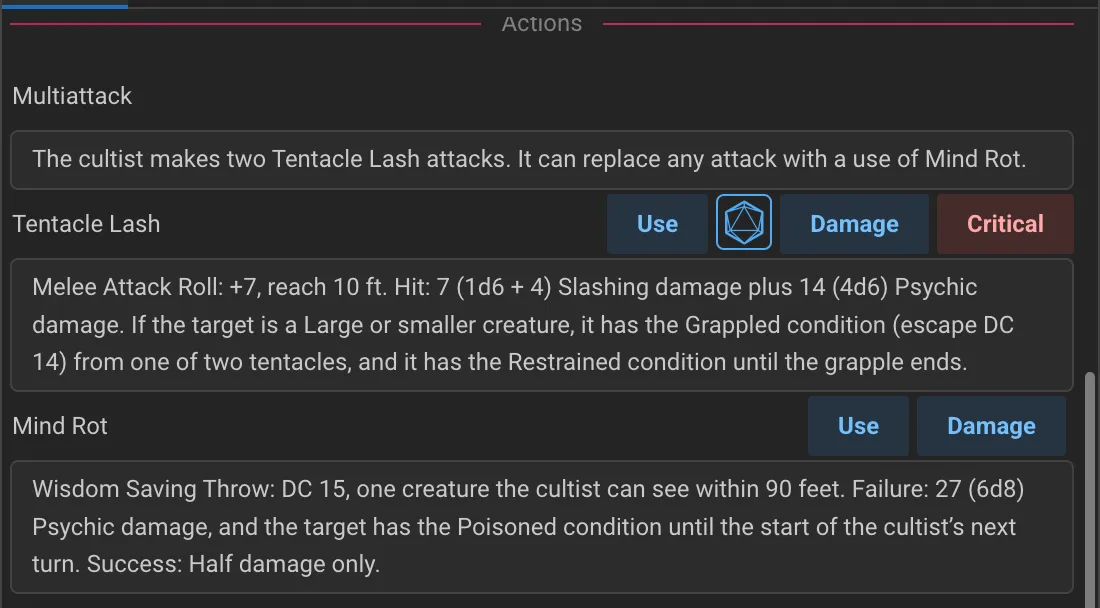
NPC Actions
When adding actions, the system automatically parses:
Attack bonuses from the description
Damage formulas (e.g., "2d6+4 slashing")
Recharge mechanics (e.g., "Recharge 5-6")
Uses per day
Copy and paste the verbiage exactly as is from a source like D&D Beyond for the automatic setting to work
Spellcasting: You may need to manually designate when an action is Spellcasting for the list to appear, then you can Drag Spells to the Spell Casting list from the Spells Compendium so that the NPC can cast those spells.
Legendary and Lair Actions
For legendary creatures:
Check "Has Legendary Actions"
The legendary action counter appears automatically
Add individual legendary actions to the list
Optionally add a description explaining how many actions can be used
Creating Content for Your Campaign
Creating Items
Create a new Item record
Select the Type:
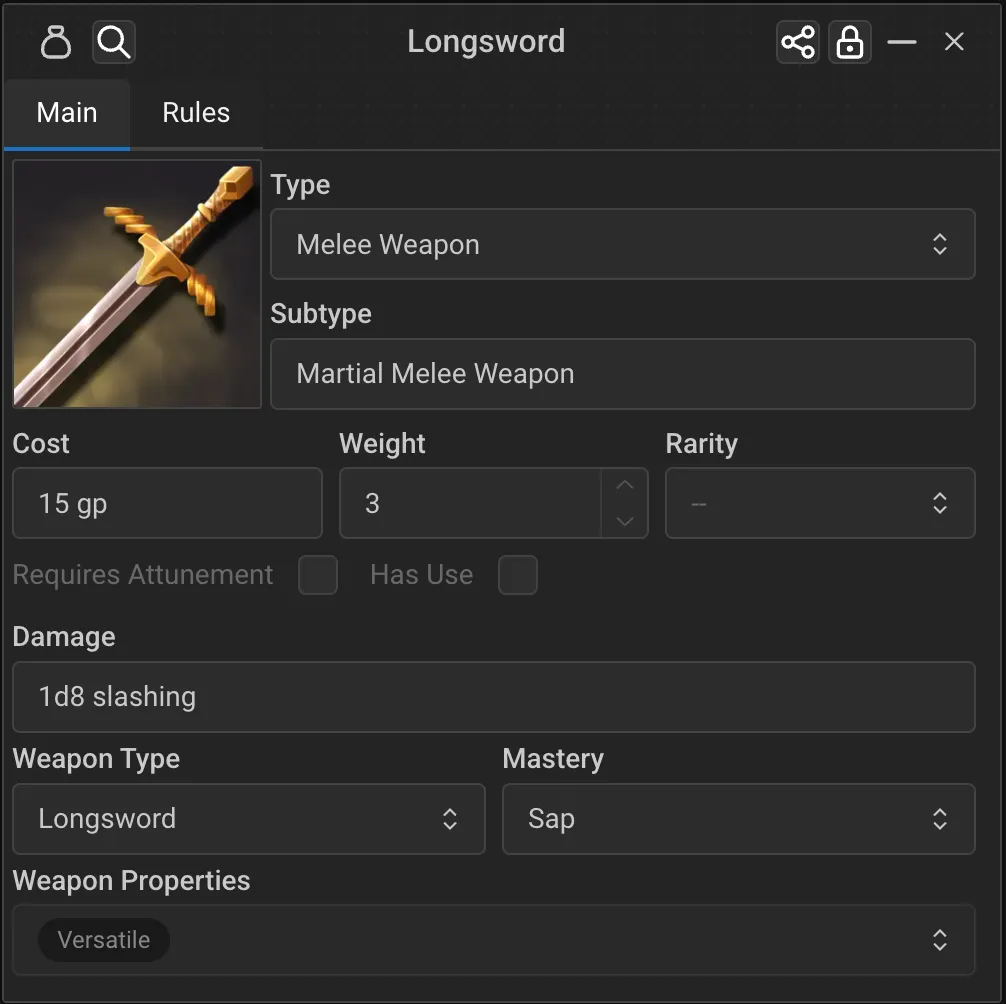
Type | Fields Shown |
|---|---|
Adventuring Gear | Basic item fields |
Melee Weapon | Damage, weapon type, mastery, properties |
Ranged Weapon | Damage, range, ammo type, properties |
Armor | AC, category, Dex modifier options |
Shield | AC bonus |
Tool | Basic item fields |
Magic Item | Rarity, attunement, effects |
Item Pack | Contains other items + currency |
For Weapons, set:
Damage dice (e.g., "1d8 slashing")
Weapon Type (for mastery benefits)
Mastery property (Cleave, Graze, Nick, etc.)
Weapon properties (Finesse, Heavy, Light, etc.)
For Armor, set:
AC value
Category (Light/Medium/Heavy)
Whether to add Dex modifier
Maximum Dex modifier (for medium armor)
Strength requirement
Stealth disadvantage
For Consumables, set:
"Has Use" and/or "Consumable" checkbox
Effects to apply when used
Healing formula
Damage formula
Rules Tab
For magic items, you may want certain modifiers applied (such as extra damage, to hit, etc.) These are added in the Rules tab of an item. You can check out how we've implemented many of these in the Magic Items SRD module for examples.
Creating Feats
Create a new Feat record
Set the Feat Type:
Origin Feat
General Feat
Fighting Style Feat
Epic Boon Feat
Eldritch Invocation (Warlock Only) - for Warlock invocations
Set any Prerequisites
Specify Ability Score Increases if applicable
Write the Description
Important: Use "Eldritch Invocation (Warlock Only)" type for all Warlock invocations. Players add these to their Features tab just like regular feats.
Creating Spells
Create a new Spell record
Set spell level (Cantrip or 1-9)
Select the School of Magic
Choose which class Spell Lists include this spell
Fill in Casting Time, Range, Components, Duration
Write the full Description
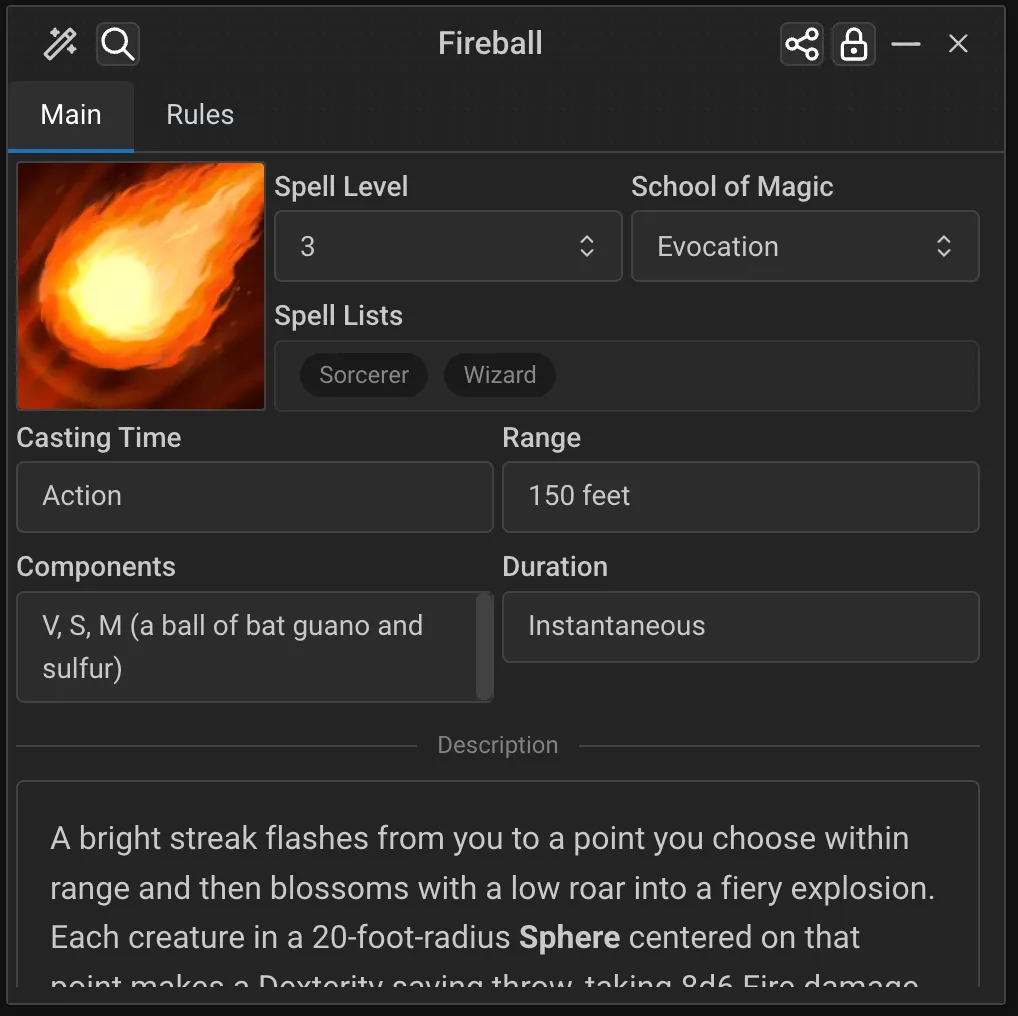
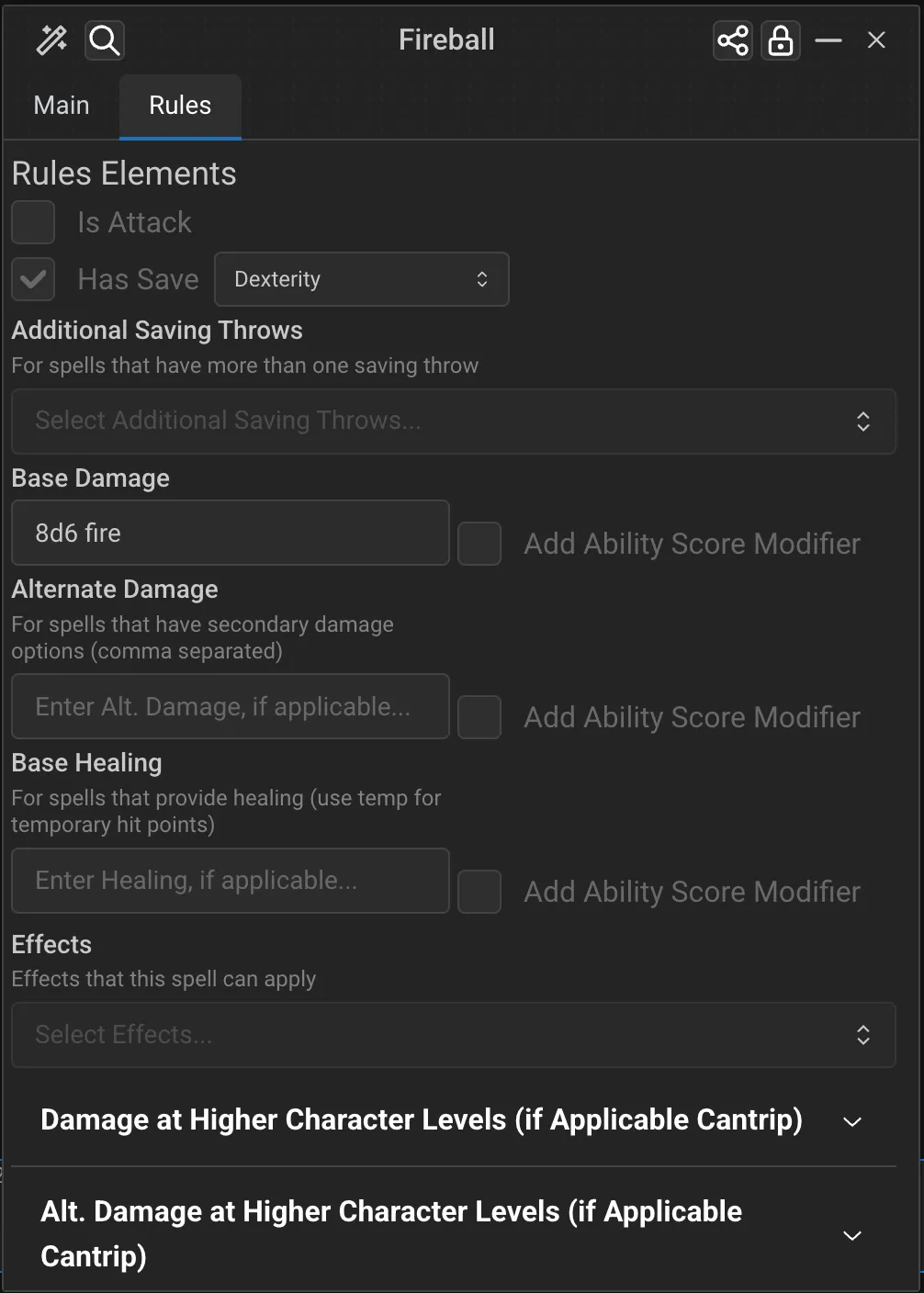
Tip: The Rules tab contains everything needed for Damage as well as what happens at higher levels or if the spell is up-casted. If the spell applies effects, create the effects first, then search for them in the dropdown on the Rules tab.
Creating Classes, Subclasses, and Species
Classes, Subclasses, and Species are more complex records that include:
Proficiency grants
Feature progression
Spellcasting information
Ability score requirements
These are typically set up once and shared across campaigns via the Modules system. See the Modules article on how to export a module of your own.
Combat & Rolling Dice
Initiative
Roll initiative by clicking the Initiative button on the Actions tab or the Main tab of the NPC sheet. The roll includes:
Dexterity modifier
Initiative bonus/penalty effects
Any other applicable modifiers
Tip: You can open the Combat Tracker quickly by hitting the "O" key. From the Menu of the Combat Tracker you can change it to the Carousel Mode for a more gamified experience and to free up some screen space.
Making Attacks
Click the attack button on a weapon in your inventory to:
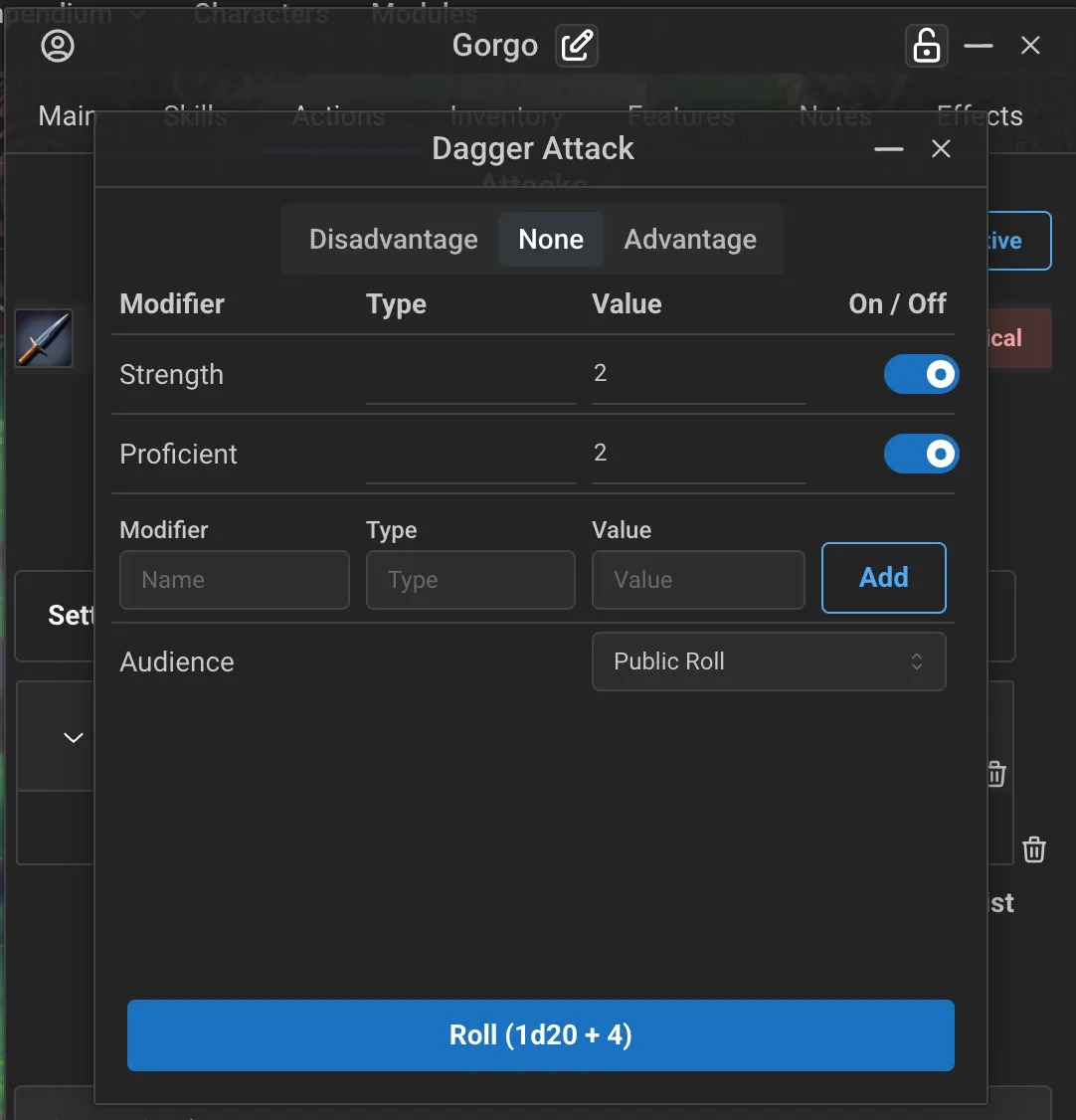
Show the roll prompt with all applicable modifiers
Toggle advantage/disadvantage if needed
Toggle any optional modifiers from abilities
Click Roll to roll the attack
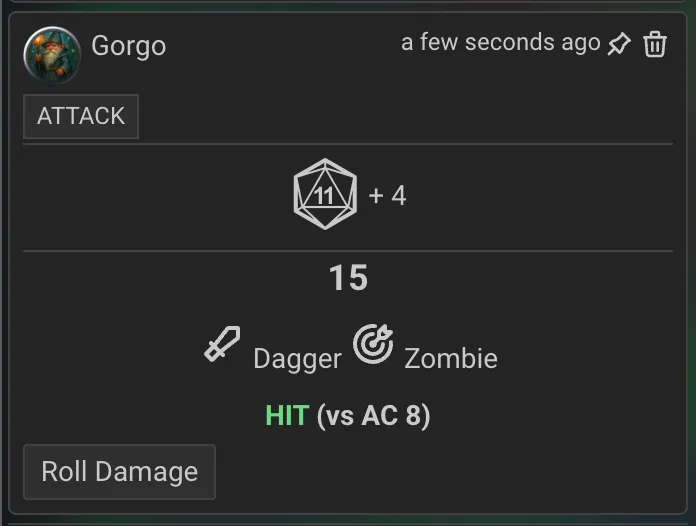
The Chat card that outputs will show the result
After the attack, click to either Damage or Critical roll damage. Critical rolls automatically double the damage dice. You can also click the button from the Chat card.
Saving Throws
Saving throws can be rolled from:
The Main tab (for characters)
The NPC sheet (for NPCs)
Spell results in the Chat that require saves
Concentration
When a concentrating character takes damage, the system can prompt for a concentration save with the appropriate DC. When this happens, click the button in the Chat Card to roll your Concentration check.
Death Saves
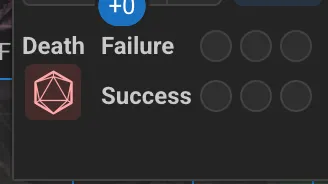
When a character drops to 0 HP, use death saving throws. Track successes and failures until the character stabilizes or dies. You can roll a Death Save from the Main tab of the Character Sheet in the bottom left.
Advanced Features
Wild Shape and Polymorph
The Features tab supports shape-shifting abilities:
Enable the Shape-shifting section on the Features tab
Drag an NPC onto the Features tab
Select the type of transformation:
Polymorph: Replaces all ability scores, gains NPC's HP as temp HP
Wild Shape: Replaces physical stats only, gains temp HP based on druid level
Animal Shapes: For the Druid spell that just affects a creatures form
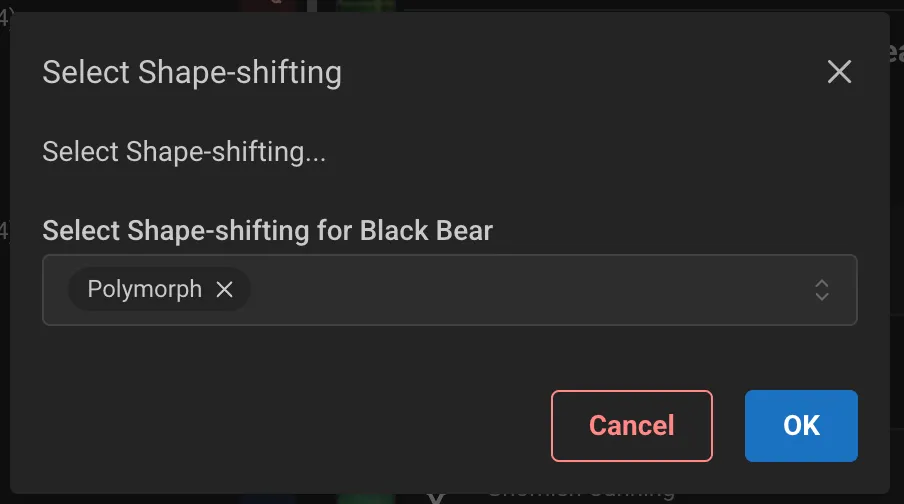
When transformed:
Your stats update to the new form
A token change effect is applied (if on the map)
The NPC's actions become available
Click "Remove Shape-shift" to revert

Weapon Masteries (2024 Rules)
Weapon Masteries are tracked on the Features tab:
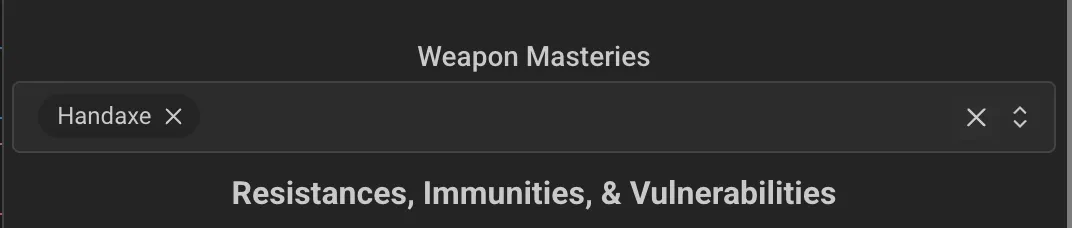
Select which weapons you've mastered. Each weapon type has a specific Mastery property per the 2024 rules. If you have a Weapon mastery, and you make an attack with an applicable Weapon, you will see the details for it in the Chat card. Some even have Macros for convenience (such as Graze).
Ability Groups
Class features often grant abilities that share a resource pool (like Channel Divinity or Ki Points). These are managed through Ability Groups:
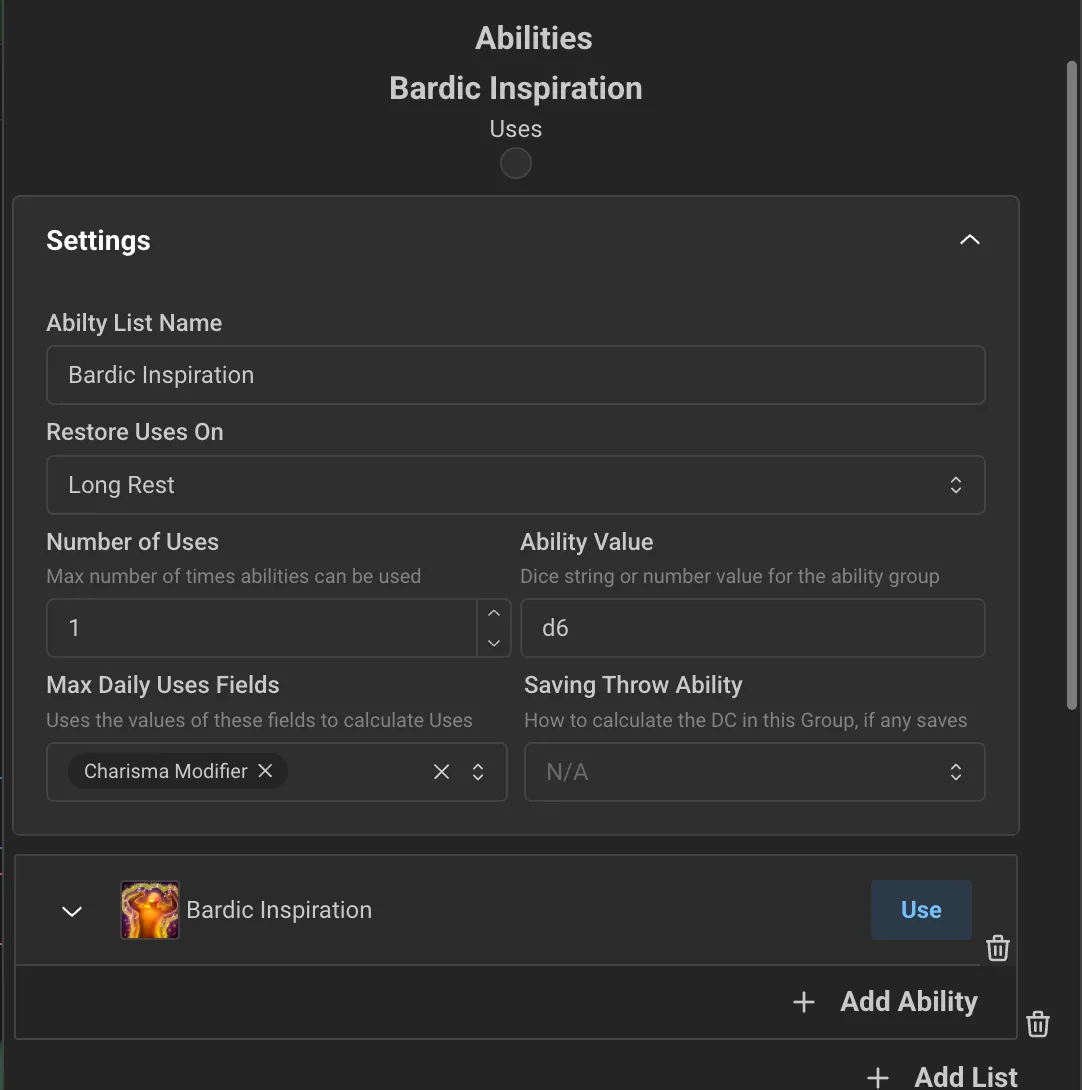
Uses are tracked together
Abilities within the group share the counter
Restoration conditions can be set (short rest, long rest, etc.)
Tips & Tricks
Keyboard Shortcuts
Use drag-and-drop extensively - it's the fastest way to add content
Right click items in the inventory for quick context menu to Delete or Copy.
If you want to dual wield daggers, copy an existing one to have two separate ones in your inventory.
Efficient Character Setup
Complete the wizard fully before adding extra content
The Actions tab populates your spell slots based on your Class automatically
Use Item Packs for starting equipment instead of individual items (these are in the SRD module!)
Check your Origin Feat for skill proficiency choices
For Game Masters
Create NPCs using the dedicated NPC record type, not character sheets
Use the Challenge Rating field - it auto-calculates XP and proficiency
Enable only the sections you need (Traits, Actions, etc.) to keep NPC sheets clean
Description fields for actions auto-parse attack/damage formulas
Common Issues
Q: My ability modifiers aren't calculating correctly
A: Check that your proficiency bonus is set correctly. Changes to proficiency bonus update all dependent calculations. Proficiency bonus is auto set when the level is changed by adding a Class or using the Level Up button.
Q: Spells aren't appearing at the right level
A: Ensure the spell's level is set correctly in the spell record itself, not just dragged to a section. Spells go to their section based on base level. The icon with the number can be clicked to change the Upcast level.
Q: My AC isn't updating when I equip armor
A: Make sure the armor is set to your equipped armor slot, not just in your inventory.
Q: I can't find Eldritch Invocations
A: They're in the Feats compendium! Filter by "Eldritch Invocation" type and drag them to your Features tab.
Q: I can't find the Level Up button
A: If experience was awarded by the GM while you had the character sheet open, try closing and re-opening your character sheet.
Quick Reference
Drag-and-Drop Summary
Source | Target | Result |
|---|---|---|
Spell (from Compendium) | Actions Tab | Adds spell to spell list |
Item (from Compendium) | Inventory Tab | Adds item to inventory |
Feat (from Compendium) | Features Tab | Adds feat and applies bonuses |
NPC (from Compendium) | Features Tab | Initiates Wild Shape/Polymorph |
Class (from Compendium) | Character | Applies class (use wizard for best results) |
Proficiency Levels
Level | Bonus | Description |
|---|---|---|
Unproficient | +0 | No proficiency bonus |
Half | +PB/2 | Half proficiency (round down) |
Proficient | +PB | Full proficiency bonus |
Expertise | +PB×2 | Double proficiency bonus |
Ability Score Modifier Chart
Score | Modifier |
|---|---|
1 | -5 |
2-3 | -4 |
4-5 | -3 |
6-7 | -2 |
8-9 | -1 |
10-11 | +0 |
12-13 | +1 |
14-15 | +2 |
16-17 | +3 |
18-19 | +4 |
20 | +5 |
Modifiers & Effects
Modifiers are the engine behind almost every automatic adjustment on a character sheet — a feat that adds your Proficiency Bonus to a save, a magic item that boosts your AC, a class feature that lets you use your spellcasting ability to attack. Instead of editing your numbers by hand, you attach modifiers to the things that grant them, and the sheet recalculates everything for you.
Where modifiers live
A modifier can be placed on any of three things:
Features (class features, feats, species traits, background features) — apply while the character has the feature.
Items (weapons, armor, wondrous items) — apply only while the item is equipped. If the item requires attunement, the modifier applies only while it is both equipped and attuned; un-attuning or unequipping removes it automatically.
Effects (conditions, spells, auras) — apply while the effect is active, and can include duration, stacking, and target-aware logic.
Tip: Put one-time, "always-on" bonuses on the feature or item that grants them. Use Effects for anything temporary (a spell buff, a condition) or anything that depends on who applied it.
Anatomy of a modifier
Every modifier row has the same columns:
Column | Purpose |
|---|---|
Type | What it changes (e.g. Attack Bonus, Armor Class Bonus, Speed Bonus). |
Field | The context it applies to (an ability, a skill, a damage type, |
Value Type | How the Value is read: Number, String, or From Field. |
Value | The amount or expression (e.g. |
Active by Default | Whether it's on automatically, or appears as a toggle the player checks at roll time. |
Predicate | An optional condition that must be true for the modifier to apply (see Conditional modifiers). |
Value Types
Number — a plain integer (
2,-1). For Penalty types you can enter a positive number; it's subtracted for you.String — text that can contain dynamic tokens and dice (
1d6 fire,Proficiency Bonus,advantage).From Field — reads the number live from another sheet field (e.g.
proficiencyBonus), so it stays current as the character levels.
Dynamic values (String type)
String values support these tokens, resolved when the roll happens:
Ability modifiers —
Strength Modifier,Dexterity Modifier, …Charisma ModifierLevel & proficiency —
Character Level,Half Character Level,<Class> Level,Half <Class> Level,Proficiency BonusShield AC —
Shield ACresolves to your equipped shield's AC bonus (0 if none)Field references —
@record.data.<field>reads any field from this character;@caster.data.<field>reads from the creature that applied the effect (for effects only)Math expressions — wrap in braces:
{floor(Character Level / 2)},{max(1, Charisma Modifier)}. Supportsfloor,ceil,min,max,abs. Without an explicitfloor/ceil, results round down (D&D convention).
Example — a Cleric feature that adds your Wisdom modifier to a damage roll: Type Damage Bonus, Value Type String, Value Wisdom Modifier.
The modifier catalog
Attack & damage
Modifier | Field | Value | Example |
|---|---|---|---|
Attack Bonus / Penalty |
| number/string |
|
Damage Bonus / Penalty |
| number/string (may include a type, e.g. | Flame Tongue: Damage Bonus, |
Attack Calculation | ability name, or | — | Pact of the Blade: field |
Unarmed Damage Override | — | damage string | Unarmed Fighting: |
Weapon Damage Type Override | — | a damage type | Turn a weapon's damage to |
Additional Weapon Mastery | — | a mastery name ( | Grants an extra mastery property when attacking with that weapon |
Martial Arts Die | a | — (the Field holds the table) | Monk's scaling unarmed die — see Special case: Martial Arts Die below |
Weapon Finesse | a weapon type/category | — | Grants Finesse (use the higher of STR/DEX) to matching weapons |
Special case: Martial Arts Die
Martial Arts Die is unusual — the scaling table lives in the Field, not the Value. Put a comma-separated list of level:die thresholds there, and the sheet picks the die for your current level:
1:1d6,5:1d8,11:1d10,17:1d12
This reads as "1d6 at level 1, 1d8 at 5, 1d10 at 11, 1d12 at 17." The Value is left blank.
It scales by the level of the class that granted the feature (not your total character level), so a multiclassed Monk 5 / Fighter 3 still gets the level-5 die. It only upgrades the unarmed/monk-weapon damage die — if your weapon already rolls a larger die, that larger die is kept.
Example — Monk's Martial Arts: on the Martial Arts feature, Type Martial Arts Die, Field 1:1d6,5:1d8,11:1d10,17:1d12, Value blank.
Spells & healing
Modifier | Field | Value | Example |
|---|---|---|---|
Spell Attack Bonus / Penalty |
| number/string |
|
Spell DC Bonus | a school, or blank | number |
|
Spell Damage Bonus / Penalty |
| number/string | Add |
Cantrip Damage Bonus / Penalty |
| number/string | Add a flat bonus to cantrips only |
Healing Bonus / Penalty | — | number/string | Increase healing received |
Hit Die Healing Multiplier | — | number | Double HP regained from Hit Dice (value |
Hit Die Healing Bonus (Per Die) | — | number | Durable: extra HP per Hit Die spent |
Saves, checks & skills
Modifier | Field | Value | Example |
|---|---|---|---|
Saving Throw Bonus / Penalty | ability or | number/string/ | Add Prof to Wis saves; or |
Saving Throw Proficiency | ability | — | Grant proficiency in a save |
Saving Throw Note | ability/ |
| A reminder tag (e.g. Evasion) shown on the result — no math - replace (PIPE) with a pipe char |
Ability Check Bonus / Penalty | ability | number/string/ | Advantage on Strength checks |
Skill Check Bonus / Penalty | a skill, | number/string/ |
|
Skill Proficiency | a skill or |
| Expertise: doubles proficiency if already proficient |
Passive scores
Modifier | Field | Value | Example |
|---|---|---|---|
Passive Bonus / Penalty | a skill | number/string | Observant: |
Passive Proficiency | a skill | — | Count as proficient for passive only |
Armor Class & defense
Modifier | Field | Value | Example |
|---|---|---|---|
Armor Class Calculation | the bonus ability | base AC number | Unarmored Defense: base |
Armor Class Ability Swap | the ability to use | armor category | Use a different ability than DEX for AC in that armor |
Armor Class Bonus / Penalty | blank or conditions | number |
|
Armor Max Dex Bonus |
| cap number | "Max Dex bonus while in medium armor becomes 3" (only raises) |
Resistances, immunities & vulnerabilities
Modifier | Field | Value | Example |
|---|---|---|---|
Add Resistance | blank, or | a damage type | Resistance to fire; |
Add Immunity | — | a damage type | Immunity to poison |
Add Vulnerability | — | a type, | Vulnerability to radiant |
Tip: Resistance can also do flat reduction — set Field to a damage type and Value to a number (e.g. Heavy Armor Master: field bludgeoning nonmagical, value 3).
Bypassing resistance & immunity
To make your own damage ignore a target's defenses (e.g. a sorcerer's Elemental Adept, or a feature that says "your fire damage ignores resistance"), use a Damage Bonus with a String value in one of these forms:
Value | Effect |
|---|---|
| The target's resistance to |
| The target's immunity to |
The middle word is the damage type, so the value is exactly three words — ignore fire resistance, ignore cold immunity. These are directives, not damage: they don't add anything to the roll and never appear as a toggle; they simply tell the damage step to skip that defense for the listed type. Add one modifier per type/defense you need to pierce.
Example — Elemental Adept (Fire): "Spells you cast ignore resistance to fire damage." Put a Damage Bonus, Value Type String, Value ignore fire resistance on the feat. (For a version that also pierces immunity, add a second one with ignore fire immunity.)
Tip: Combine with a Predicate to scope it — e.g. {"and": ["spell:fire"]} so it only fires on fire spells, not weapon attacks.
Hit points & ability scores
Modifier | Field | Value | Example |
|---|---|---|---|
Hit Point Maximum | — | number/string | Tough: |
Temporary HP Bonus | — | number/string | Add to temp HP whenever it's granted |
Attribute Bonus | an ability | number |
|
Attribute Set | an ability | target score | Amulet of Health: set CON to |
Dual Concentration | — | spell-level cap | Maintain two concentration spells at once |
Movement & initiative
Modifier | Field | Value | Example |
|---|---|---|---|
Initiative Bonus / Penalty | — | number/string | Alert-style initiative boost |
Base Speed | — | number | Set walking speed (only raises) |
Speed Bonus / Penalty | — | number or mode |
|
Weapon Range Bonus |
| number | Extend a ranged weapon's range |
Senses, proficiencies & utility
Modifier | Field | Value | Example |
|---|---|---|---|
Senses | — | sense string |
|
Armor / Weapon / Tool Proficiency | (tool: blank or | a proficiency name |
|
Add Language | — | a language | Add Draconic |
Wild Shape Bonus |
| varies | Tune Wild Shape temp HP, AC, attacks |
Regeneration (Start/End of Turn) | — | number | Troll-style regrowth |
Death Save Threshold | — | number | Adjust the death-save success target |
Encumbrance Size Increase | — |
| Powerful Build (carry as one size larger) |
Ignore Worn Armor Weight / Ignore Armor Skill Penalty | — | — | Remove armor weight or Stealth disadvantage |
Ability Group Uses Bonus | a group name | number | Extra uses of a limited feature |
Set Value | a data field | any | Write a raw field directly (advanced) |
Toggle | a toggle key | display name | Adds a checkbox above the attack list, used by Predicates |
Important: Use Attribute Set (not Set Value) for ability scores — it floors the score correctly, reverts when removed, and recalculates everything that depends on it (modifier, HP, saves). Set Value writes a field once with no revert.
Conditional modifiers: Predicates
A Predicate makes a modifier apply only when a condition is true. The simplest case ties a modifier to a Toggle the player checks before rolling; more advanced predicates inspect the roll itself.
A toggle name —
focused-shot— only when that toggle is checkedweapon:<property>— only with a matching weapon:weapon:finesse,weapon:ranged,weapon:heavy,weapon:name:daggerself:proficient— only on a check/skill you're proficient ineffect:<name>/feature:<name>— only if the character has that effect or featureCombine with logic — JSON like
{"or": ["weapon:finesse", "weapon:ranged"]},{"not": "feature:heavy-armor-master"}, or an array["sneak-attack", "weapon:finesse"](all must be true)
Example — Sneak Attack die only on a finesse or ranged weapon: a Damage Bonus with Predicate ["sneak-attack", {"or": ["weapon:finesse", "weapon:ranged"]}].
Special value keywords
These work in bonus/penalty values:
advantage/disadvantage— grant advantage/disadvantage on the rollcriticalN(e.g.critical19) — crit on N–20; works on attacks and checksminrollN(e.g.minroll10) — treat any d20 result below N as N (Reliable Talent)<value> noCrit [type]— a damage bonus added on a hit but not doubled on a critignore <type> resistance/ignore <type> immunity— on a Damage Bonus, makes this attack bypass the target's resistance/immunity to that damage type (see Bypassing resistance & immunity above)
Effect-only modifier types
When building an Effect (rather than a feature/item), a few extra types become available because they're aimed at a creature:
Attacks Targeting You — adjusts attacks made against the affected creature. Supported values:
advantage/disadvantage— attacker rolls with adv/disadvcritical— attacks against this creature auto-crit (alsocritical19, etc. to widen the attacker's crit range)noAdvantage— cancels any Advantage the attacker would otherwise have (e.g. "attack rolls against you don't have Advantage"); does not grant disadvantage Honored by every attack path (weapon, spell, NPC action, Wild Shape). Pair with predicates like{"not": "target:applied_by"}for "disadvantage on attacks, except from me."
Effects also support target-aware predicates (target:creature_type:dragon, self:senses:darkvision) and special value sources (stack count, externally-set values).
Worked examples
Amulet of Health — "Your Constitution score is 19." On the item: Type Attribute Set, Field constitution, Value Type Number, Value 19. Mark the item as requiring attunement; the change applies only while attuned and reverts when you remove it.
Unarmed Fighting fighting style — "1d6 + STR, becomes 1d8 if you have no weapon or shield in hand." On the feature: Type Unarmed Damage Override, Value Type String, Value 1d6/1d8 bludgeoning. Flip the unarmed strike's hand toggle to Two-Handed for the d8.
Dueling fighting style — "+2 damage with a one-handed melee weapon." Type Damage Bonus, Field melee, Value 2, Predicate {"not": "weapon:two-handed"}.
Observant — "+5 to Passive Perception." Type Passive Bonus, Field perception, Value 5.
Tips & gotchas
Number vs String: use String the moment you need a die, a damage type, or a token like
Proficiency Bonus.Penalties: enter a positive number on a Penalty type — it's subtracted automatically.
Active by Default off turns a modifier into a roll-time toggle (great for optional bonuses like a feat you choose to use).
Attunement: item modifiers respect attunement automatically — no need to gate them yourself.
Rounding is always down unless you write
ceil().